
Documents for Jira Cloud was originally developed on the Atlassian Connect app development platform, but meanwhile Atlassian introduces a brand-new platform named Atlassian Forge, which comes with significant improvements related to security, data residence and performance.
We developed a new version of Documents for Jira Cloud on the new Forge platform, which has been exposed to new installations over the past few months while we carefully monitored and refined it. Now, this version is also available as an upgrade for existing Connect-based app installations.
Connect to Forge app upgrade is a necessary step as Atlassian has announced the retirement of the Atlassian Connect platform in the near future (see Announcing Connect End of Support: Timeline and Next Steps).
How to determine if your installed app version is Connect or Forge?
Follow these steps to check if your app version is Connect or Forge.
-
Log on to Jira Cloud as an administrator
-
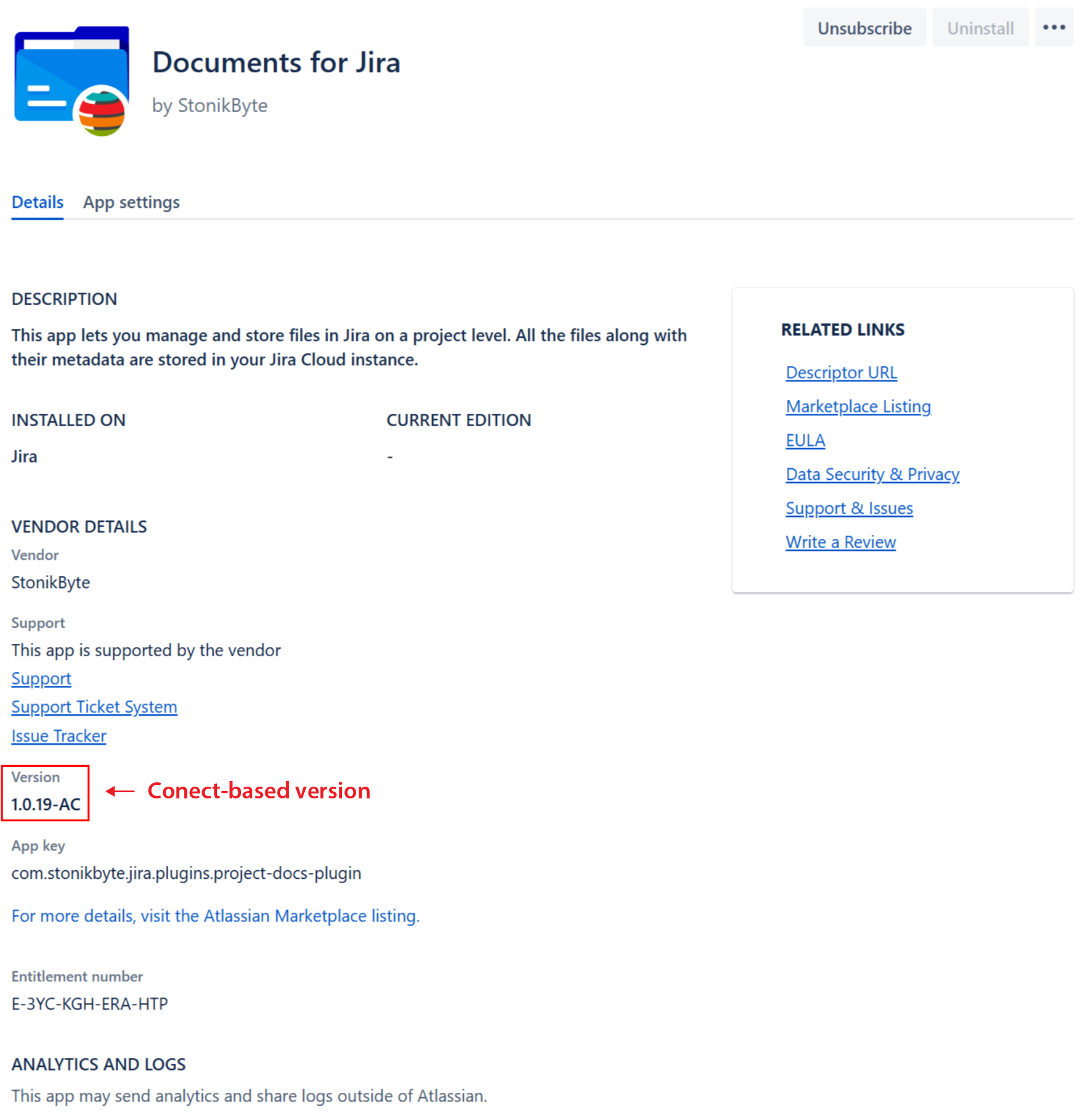
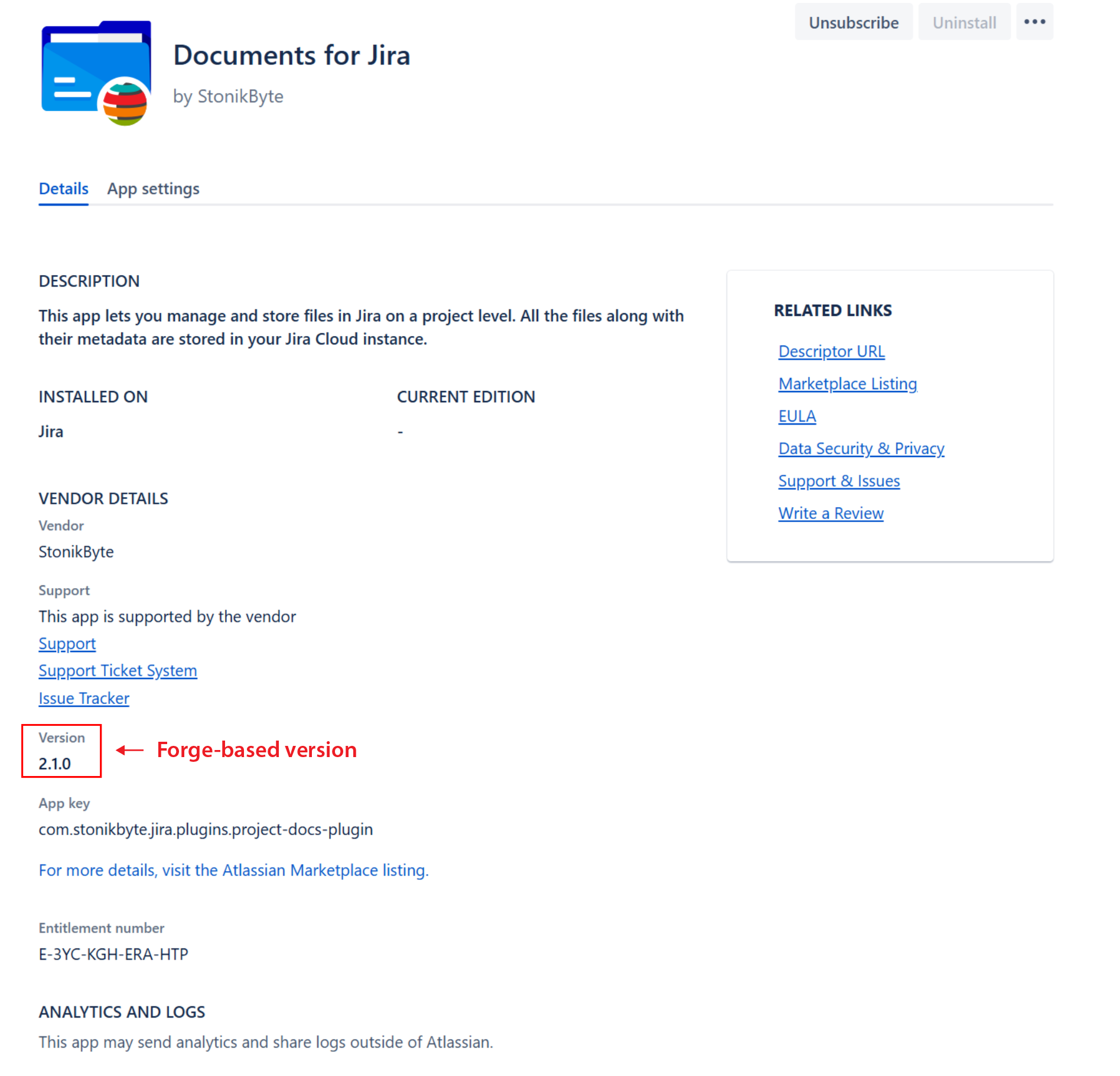
Go to Apps > Manage Apps and expand Documents. Look at the Version number.
-
If the app version ends in “-AC“ (e.g. 1.0.19-AC), then you have a Connect-based version of the app installed. In this case, please proceed further with the Forge upgrade steps described in the next sections.
-
If the app version does not end in "-AC" (e.g. 2.1.0), then you already have a Forge-based version of the app installed. In this case, you should upgrade to the latest Forge-based version of the app if the Update button is available and you're ready.
What is the impact of app upgrade from Connect to Forge?
The upgrade from Connect to Forge is expected to be a seamless process.
All the existing data will remain in-place (in Jira). In addition, all the app features available in the Connect-based version will be also available in the Forge-based app version.
Gadgets title editing
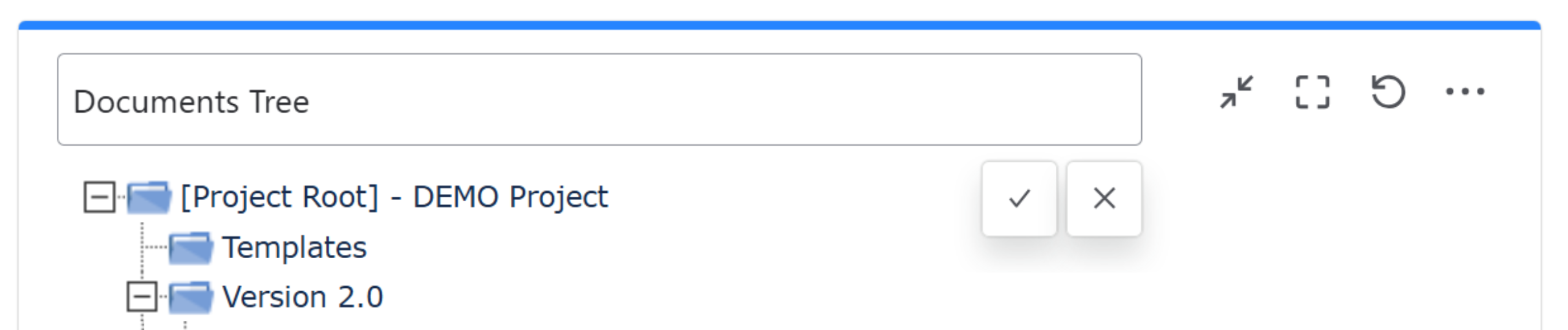
One difference that Jira users will notice is that there will be no “Title” field in the app gadgets configuration. The old gadget titles will be preserved, but editing will be possible by clicking on the gadget title.
Errors 403-Forbidden if you have IP allowlists enabled
If you have IP allowlisting enabled at the organisation level, the app may return error 403 (Forbidden) in various screens after the update.
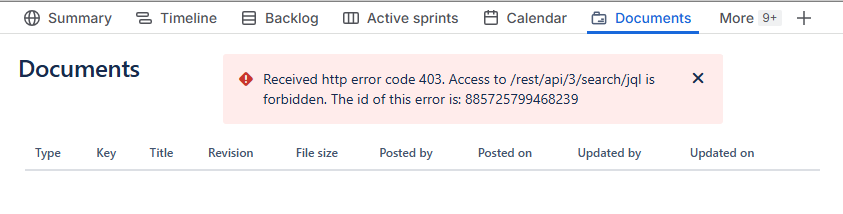
This is because Forge is more restrictive than Connect, and to fix it, you have to add the app server IP addresses to the Jira allowlists (see Technical Notes).
How to upgrade from Connect to Forge
Once you determine that you have a Connect-based version installed, follow these steps to upgrade to the latest Forge-based version of the app:
-
Proceed with Documents upgrade in Jira Cloud:
-
Log in to your Jira Cloud instance as an admin
-
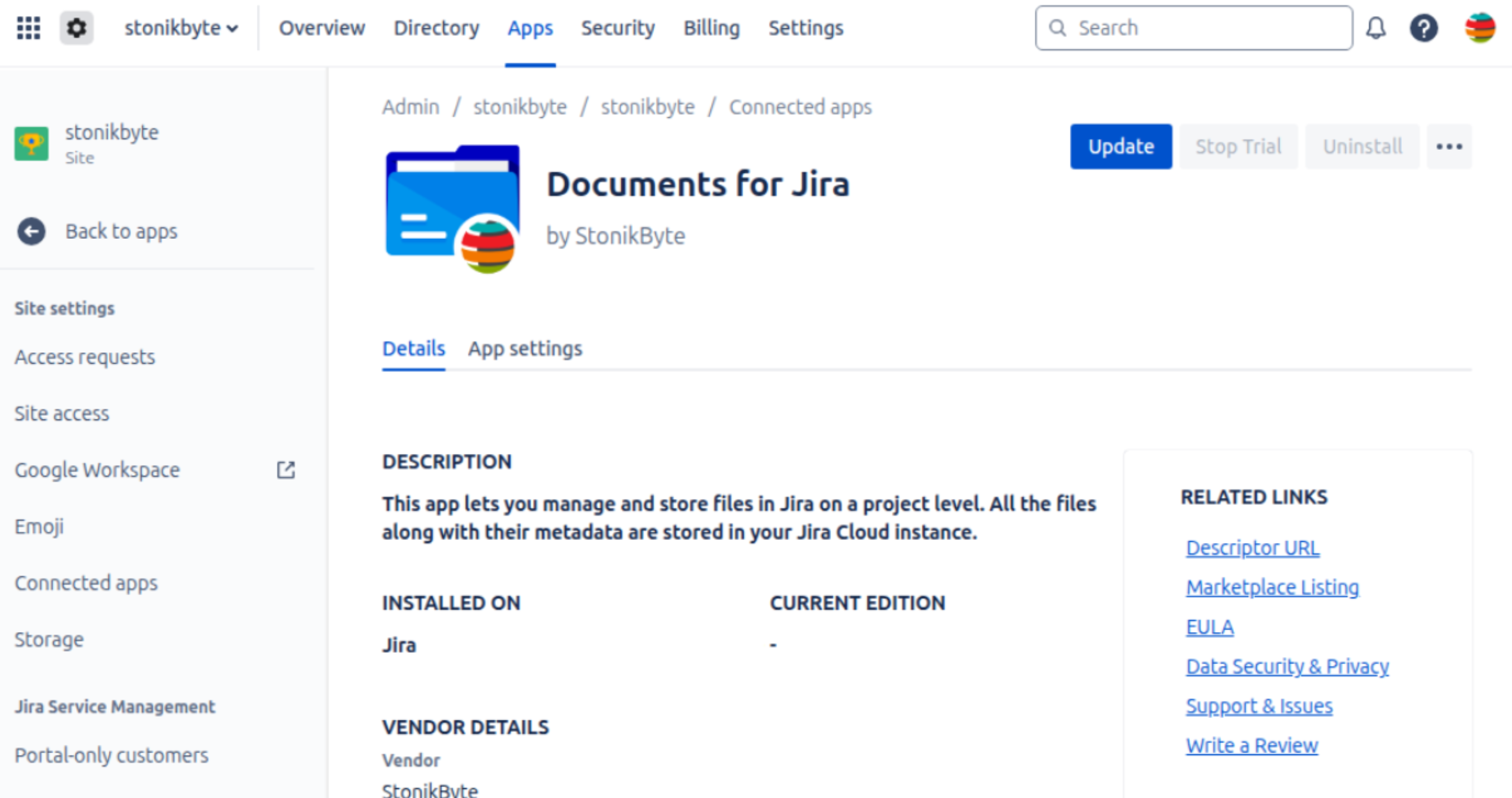
Go to Apps > Manage Apps. If App Management has moved to Jira administration, go to Connected Apps section from admin.atlassian.com.
-
Expand Documents and click Update.
-
-
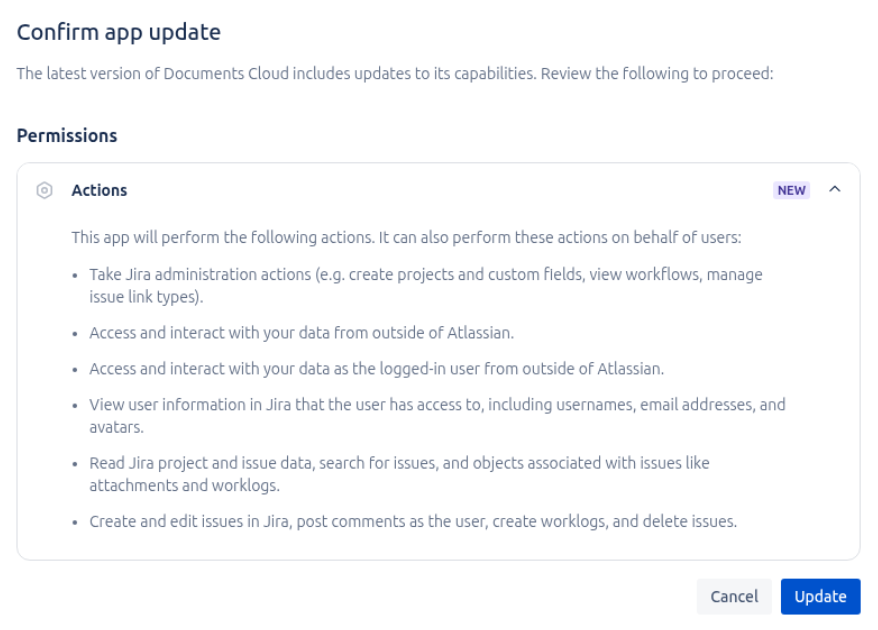
In the Confirm app update screen, click Accept & update.
-
If you are prompted that a page refresh is required, click Refresh.
-
At this stage the upgrade is complete and the app should be fully functional.
-
If you have IP allowlisting enabled at the organisation level, the app may return error 403 (Forbidden) after the update. To fix this, add the app server IP addresses to the allowlists (see Technical Notes)
For any questions, please contact StonikByte Support by creating a ticket in the support portal or by emailing support@stonikbyte.com.