
Single document deletion
Follow these steps to delete a document or folder:
-
In Jira, go to Projects.
-
Make sure you are on the right project.
-
Click the Documents tab.
-
Locate the document that you want to delete and click on its Delete option under the Actions menu.
The Delete action is available only if the user has Delete permission.
-
You will be asked if you really want to delete the document. If you are sure that you want to delete the document, click OK. A message with the result of this action will pop up at the top of the page.
The document is permanently deleted along with its version history; you cannot restore it after deletion.
Bulk document deletion
Follow these steps if you want to delete multiple documents and folders at once:
-
In Jira, go to Projects.
-
Click the Documents tab.
-
Make sure you are on the right project.
-
Open the folder that contains the items that you want to delete.
-
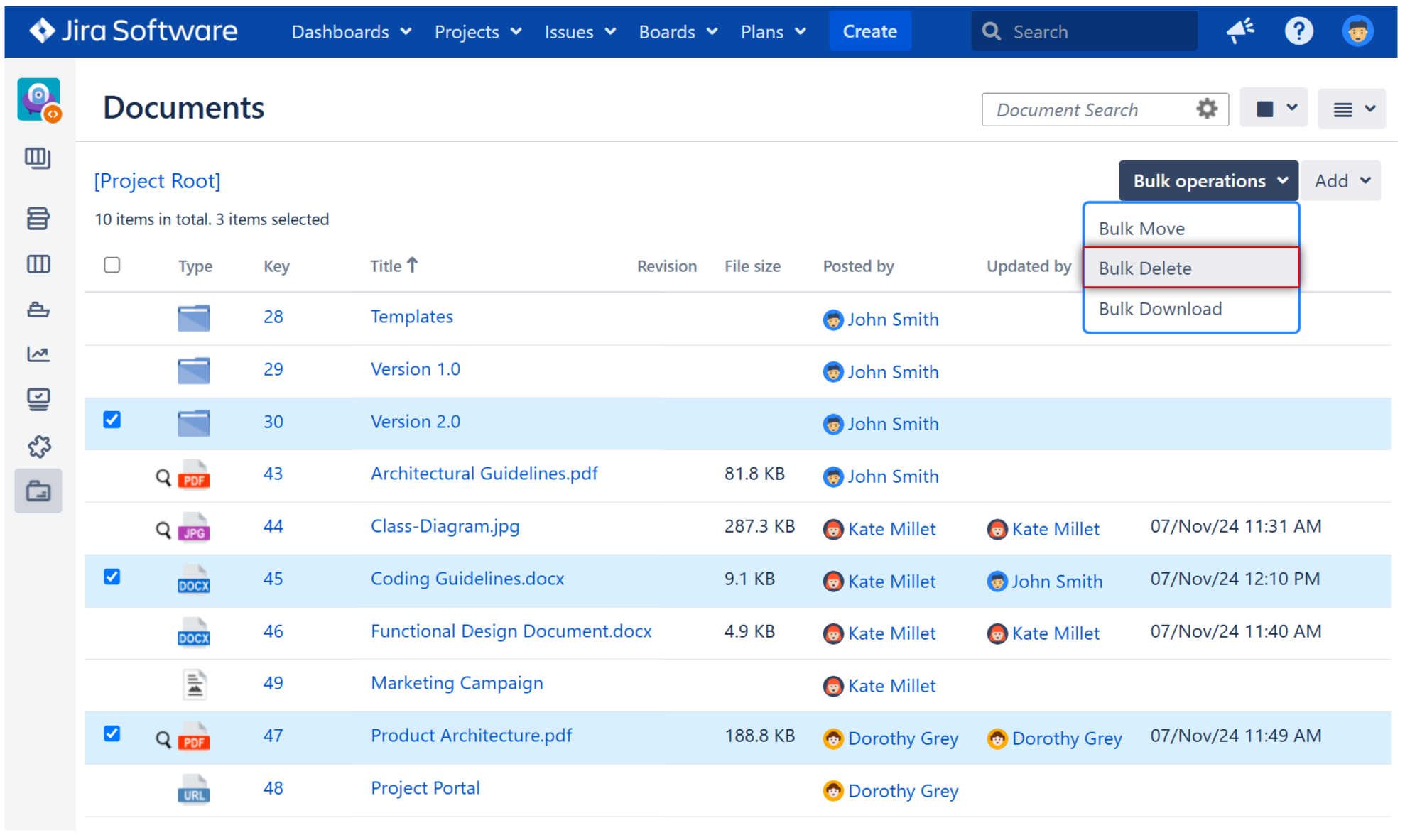
Select the documents and folders that you want to delete. The Bulk operations menu will appear.
-
Click Bulk operations and then click Bulk Delete.
-
In the confirmation window, click Yes if you really want to delete the selected items.
The delete operation cannot be undone.