
Single document movement
Follow these steps to move a document or folder to another folder:
-
In Jira, go to Projects
-
Click the Documents tab
-
Make sure you are on the right project
-
Locate the document that you want to move and click on its Move option under the Actions menu
The Move action is available only if the user has Move permission.
-
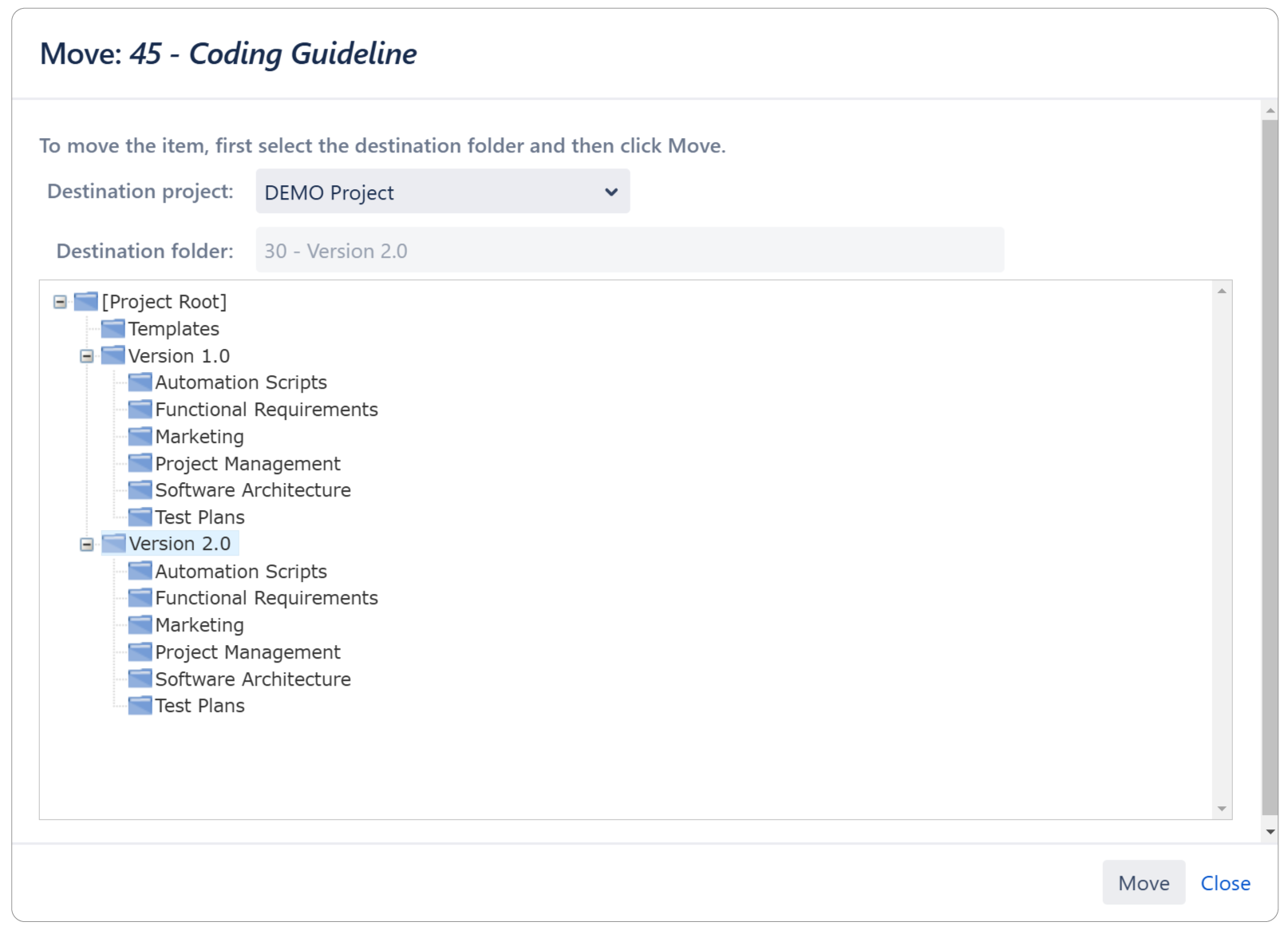
In the Move window, select the Destination Project and the Destination Folder in the folder tree hierarchy
To be able to move a folder in another project, you must have View and Create permissions in that project.
The Split Pane Layout mode allows moving items (documents and folders) from a pane to another by using drag & drop.
Bulk document movement
Follow these steps if you want to move multiple documents and folders at once:
-
In Jira, go to Projects
-
Click the Documents tab
-
Make sure you are on the right project
-
Open the folder that contains the items that you want to move
-
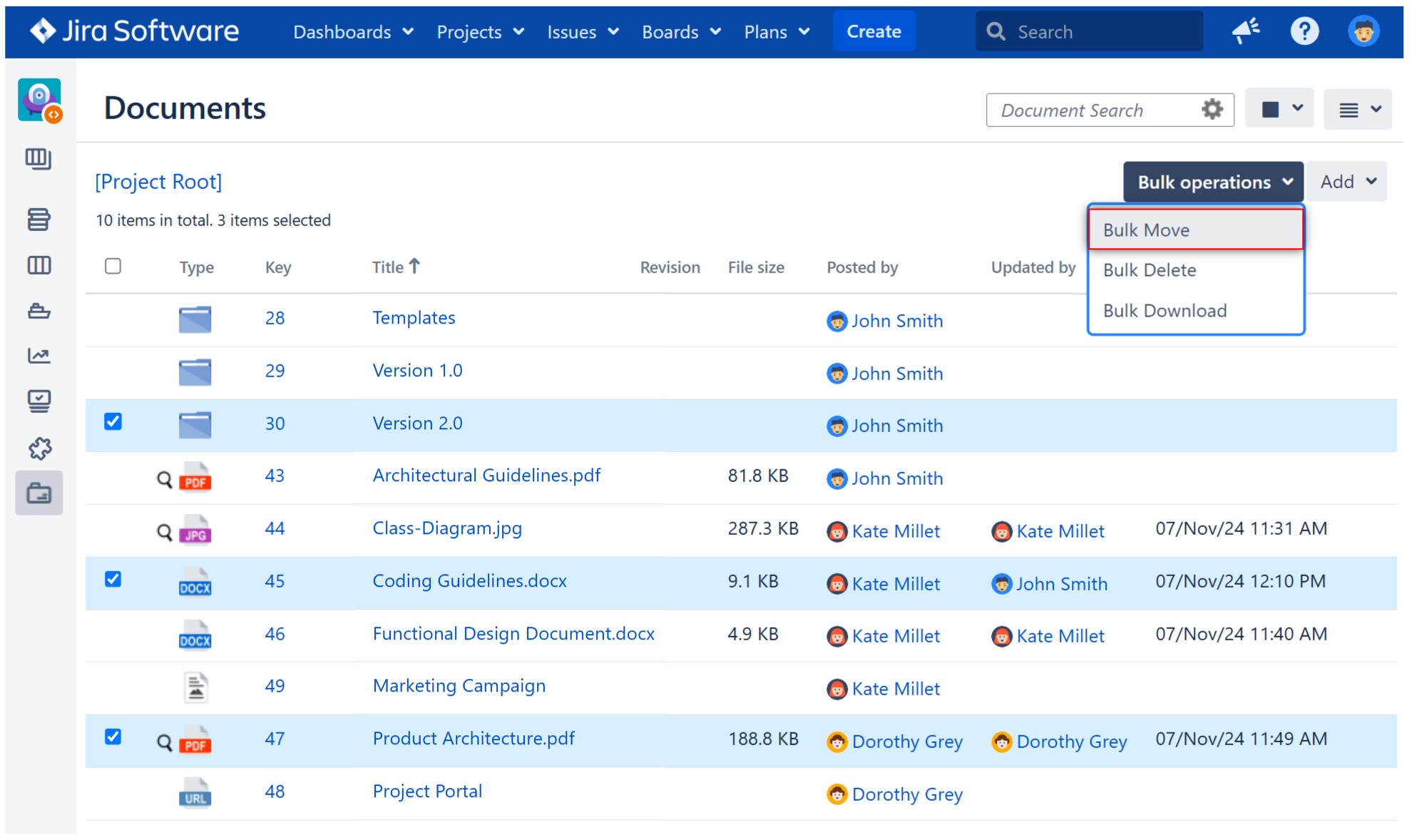
Select the documents and folders that you want to move. The Bulk operations menu will appear
-
Click Bulk operations and then click Bulk Move
-
In the Move window, select the Destination Project and the Destination Folder in the folder tree hierarchy
To be able to move a folder in another project, you must have View and Create permissions in that project.
-
Click Move. A message with the results of this action will pop up