
To add a new user custom field:
-
Log in as a Jira admin
-
Navigate to Jira Settings > Apps > PROJECT TEAM > Profile Custom Fields page
-
Click the Add Custom Field button
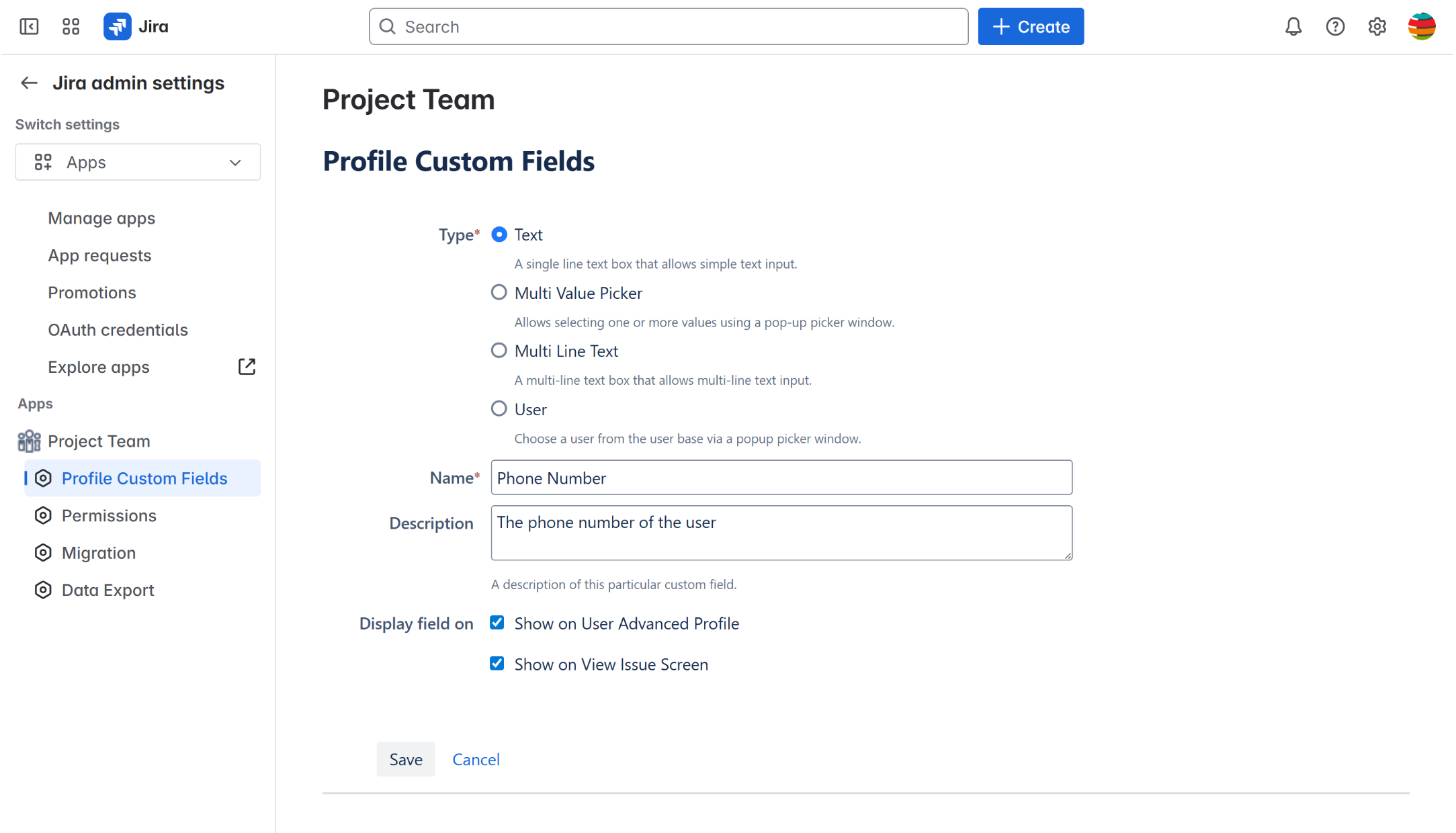
-
Select the Type of the new field
-
Enter a Name for the new custom field
-
Optionally, type a Description
-
If you choose to add a Multi Line Text field, you can add one or more items that represent the possible values of the field.
-
Choose where the new field is to be displayed. If you check Show on User Advanced Profile, it will be displayed on the User Advanced Profile page of every user. If you check Show on View Issue Screen, the field will be displayed in the "User additional attributes" section of the View screen of the Jira issues, but only if the field has a value.
These toggles only control whether the fields are displayed in the Advanced Profile or View Issue screen. They do not make the fields private or restrict access to them. Please keep in mind that these fields may still be visible to other Jira users in different areas, such as the Team Members gadget.
The User Advanced Profile page displays all the fields, regardless of their Show on User Advanced Profile setting, to the users that have permissions for editing the field values.
-
Click Save