
You can purchase a Great Gadgets for Azure DevOps subscription directly from the Visual Studio Marketplace Pricing page.
Follow these steps to purchase and activate your subscription.
STEP 1: Choose Your Subscription
Visit the Pricing page and select the subscription type that best suits your needs:
-
Organization Subscription (Per User Tier) – Provides access to all users in your Azure DevOps organization. Pricing is based on your organization's total number of users.
-
Seat-Based Subscription – Provides access only to selected users. Pricing is based on the number of seats purchased.
STEP 2: Select Your Billing Cycle
Choose between Monthly and Annual billing.
Both options renew automatically. Your payment card will be charged at each renewal, and an invoice will be sent to your registered email address.


STEP 3: Complete Your Purchase
Click the purchase link for your chosen subscription and billing cycle to open the checkout page.
Enter the required information:
-
Quantity (Qty) – For an Organization Subscription, enter the appropriate user tier from the pricing table (e.g., 300 for an organization with 290 users). For a Seat-Based Subscription, enter the number of seats you want to purchase.
-
Contact and Billing Details – Provide your billing information and the email address where invoices should be sent.
-
Azure DevOps Organization Name – Enter only your organization name, not the full URL. For example, enter
myorganizationinstead ofhttps://dev.azure.com/myorganization. -
Technical Contact – Provide the name and email address of the person responsible for technical matters.
-
Payment Details – Select your payment method and enter the required information.
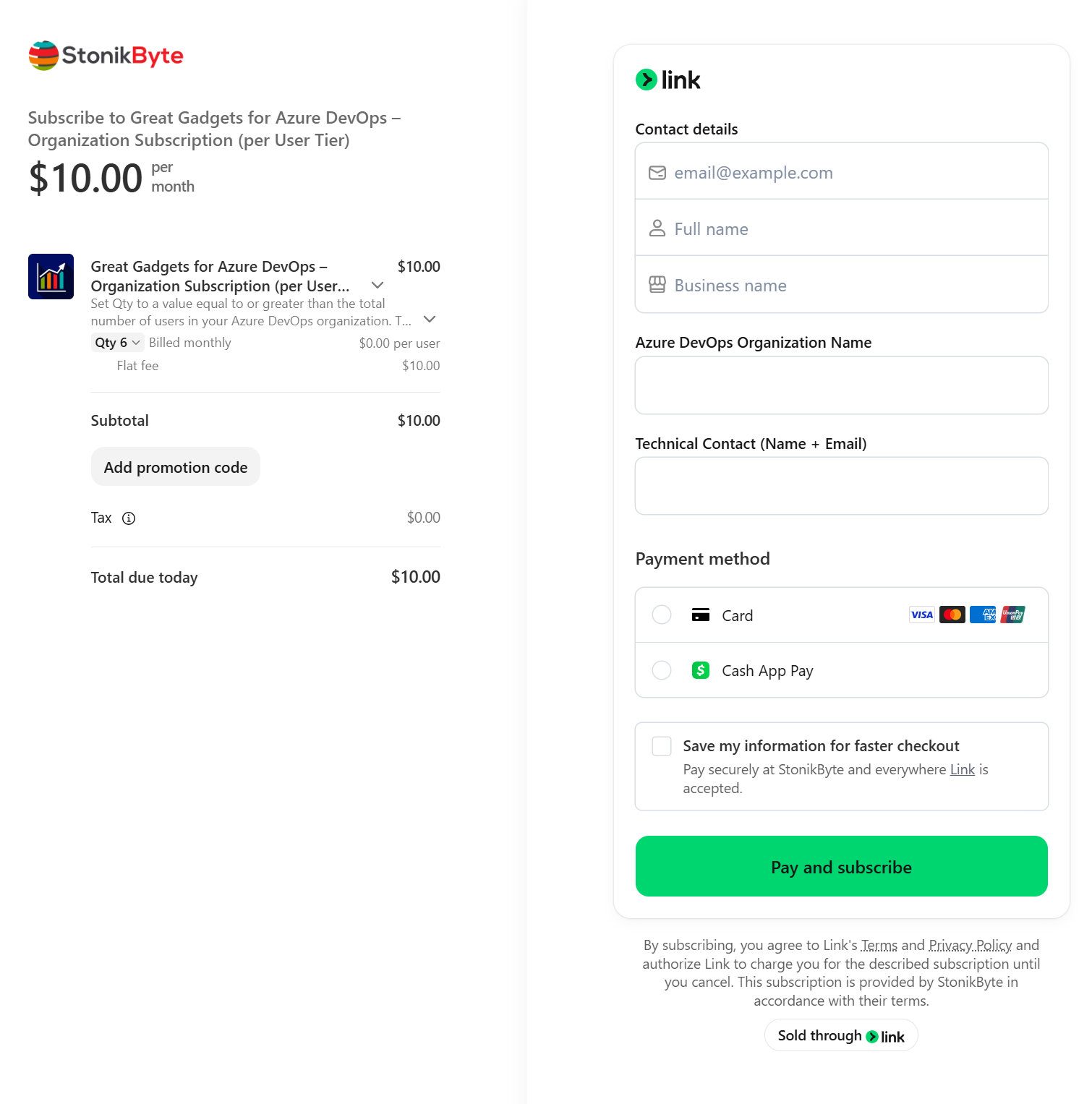
Review your details and click Pay and subscribe to complete the purchase.
An invoice will be sent automatically to the email address provided during checkout.
STEP 4: Activate Your Subscription
Activation depends on the subscription type you purchased.
Organization Subscription (Per User Tier)
Your subscription should activate automatically after purchase. All users in your Azure DevOps organization can access Great Gadgets without any additional configuration.
Seat-Based Subscription
To activate access for licensed users:
-
Sign in to Azure DevOps as an organization administrator.
-
Go to Organization Settings → Permissions → Groups → New Group.
-
Create a group named
great-gadgets-licensed-users. -
Add the users who need access, ensuring the number does not exceed your purchased seats.
-
Go to Organization Settings → Extensions → Great Gadgets and click Sync Licensed Users.
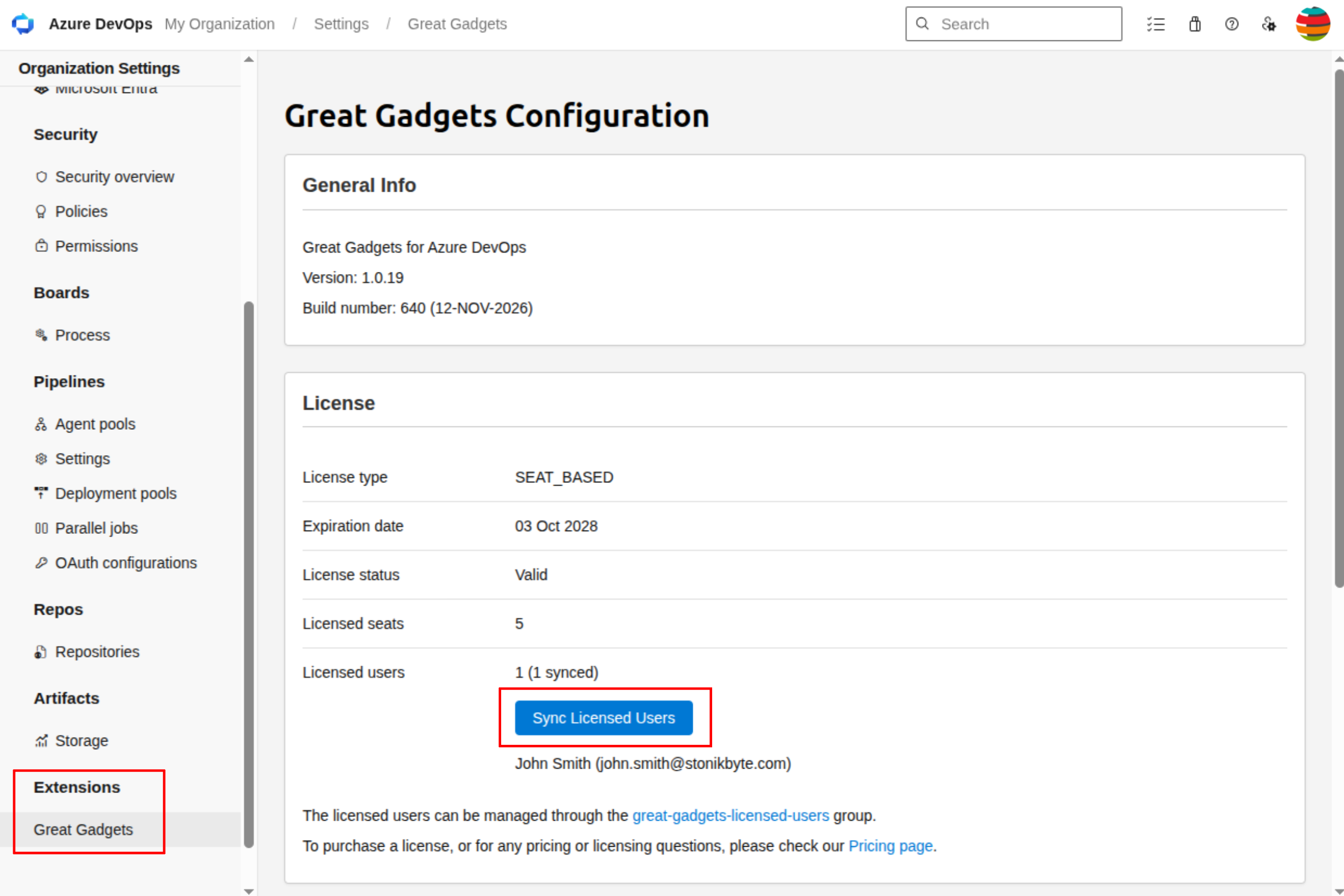
Once synchronized, the licensed users can access Great Gadgets widgets.
Important: Whenever you add or remove users from the licensing group, click Sync Licensed Users again to update their access. Users without a valid license will receive a license error.
Need Help?
If you experience licensing issues after purchase or activation, contact StonikByte Support at support@stonikbyte.com.