
To configure the Project Team app settings, follow the next steps:
-
Log in to Jira as an administrator
-
Go to Administration > Project Team
-
Click Settings under Project Team App Configuration
-
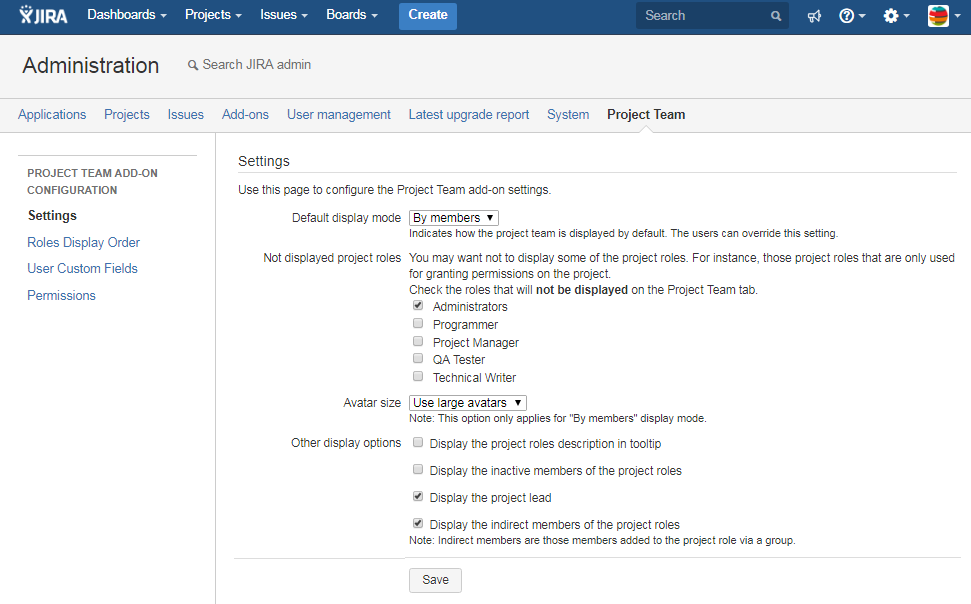
On the Settings tab, change the settings to suit your preferences. See the table below for a complete description of the available settings.
-
Click Save to apply the settings
|
Item |
Description |
|---|---|
|
Default display mode |
This option indicates how the team is displayed on the Project Team tab if a display mode has not yet been selected by the user.
|
|
Not displayed project roles |
You may not want to display some of the project roles. For instance, those project roles that are only used for granting permissions over the project or for notification schemes.
|
|
Avatar size |
Choose between using large or small avatars. The default value is Use large avatars. This option only applies when the current display mode is set to By members. |
|
Other display options |
Check Display the project roles description in tooltip if you want the description of the project role to be displayed in a tooltip when the user moves the mouse pointer over a project role. This option is by default unchecked.
|