
Once you installed and configured the app (see Installing and configuring the app ), you can start using the dashboard gadgets.
To add a gadget to a dashboard:
-
In Jira, go to Dashboards
-
Create a new dashboard or select an existing one
-
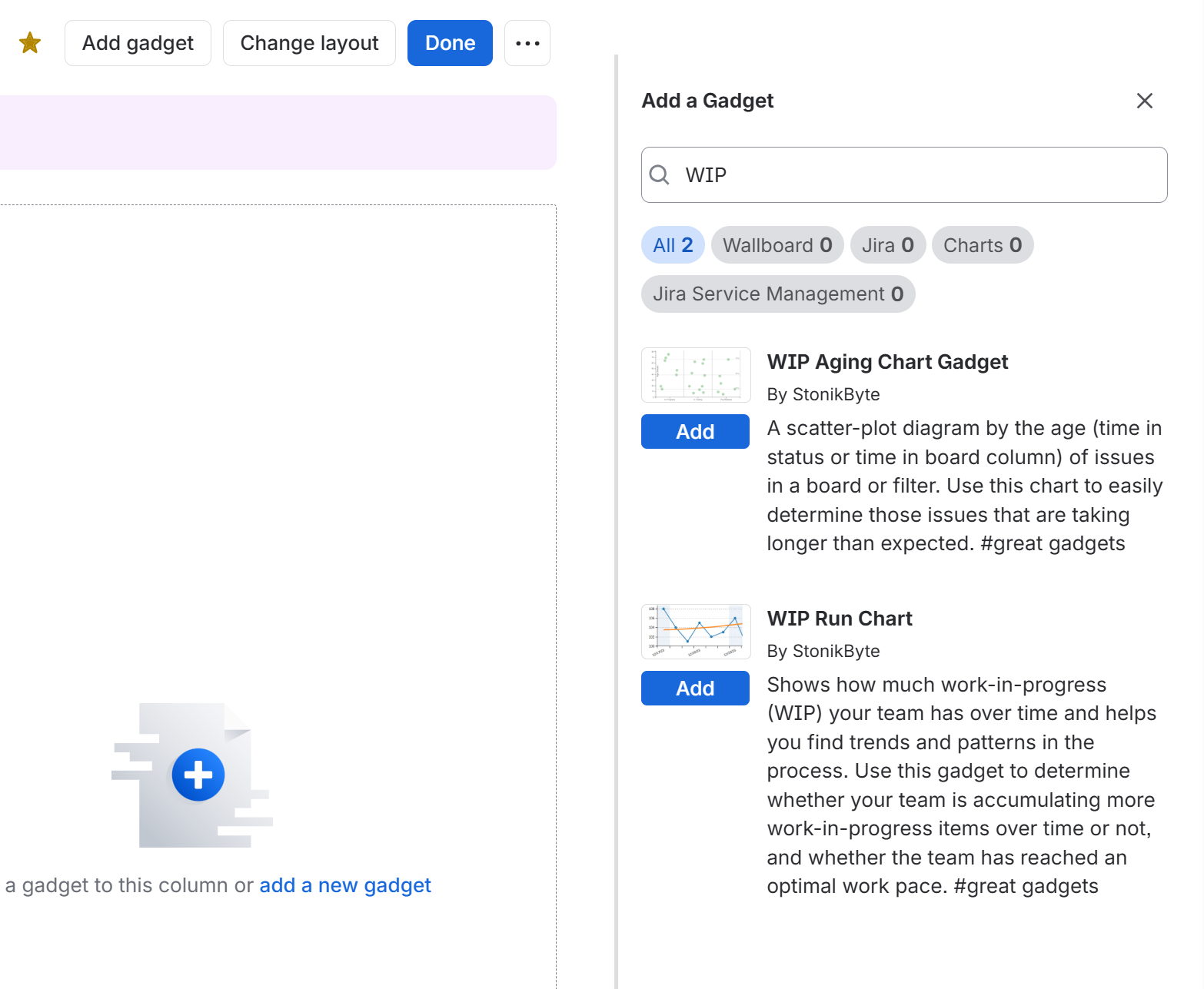
Click the Add gadget button of the dashboard
-
In the "Add a gadget" screen, filter by “WIP” or "StonikByte" to display all the gadgets of the app
-
Click the "Add gadget" button of the gadget that you want to add
-
Once you added the gadgets, close the "Add a gadget" screen and continue by entering the gadget settings. See below the instructions for how to configure the gadgets.
Using the gadgets in Confluence Cloud
For using the gadgets in Confluence Cloud you have to simply copy and paste the gadgets in a Confluence page.

Using the gadgets in wallboard mode
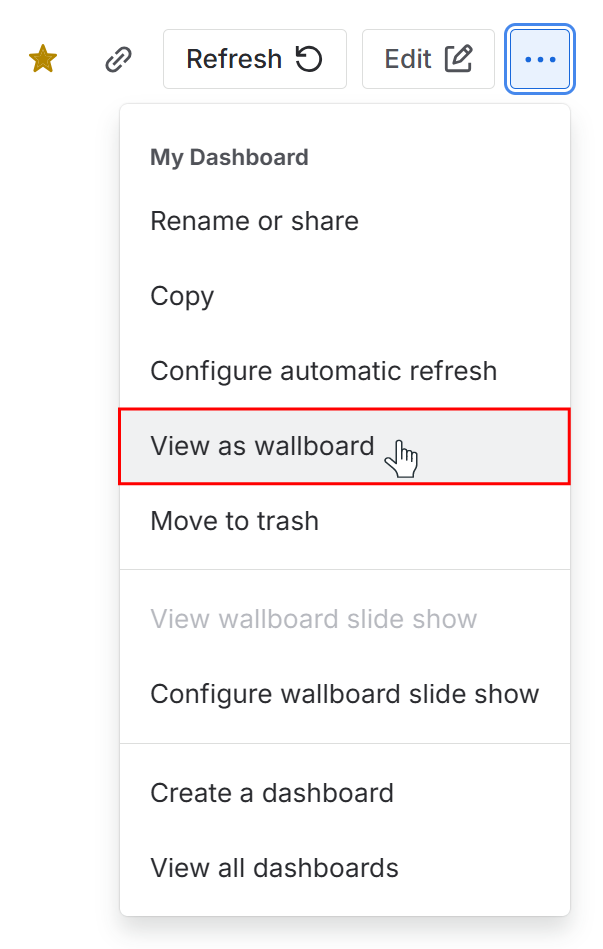
In Jira, you can display the gadgets in wallboard mode to make them visible on big TV screens as information radiators, for example.
To trigger the wallboard mode, click the View as wallboard option of the Jira dashboard's menu.
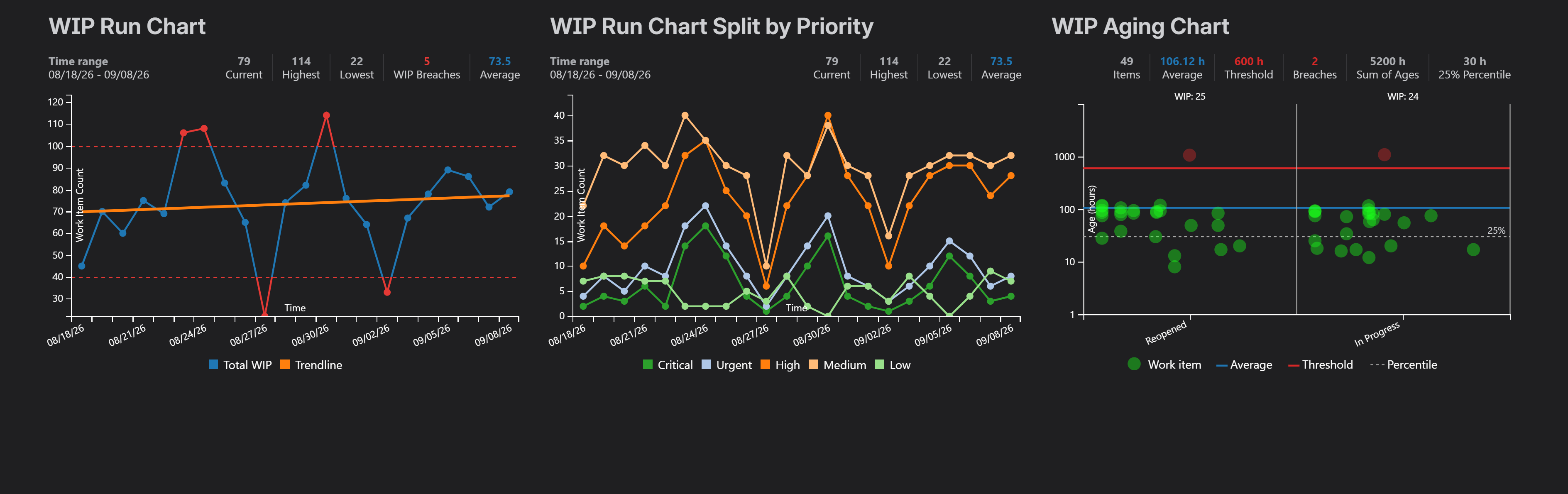
Dark Theme Support
The application fully supports Dark Theme mode.
Supported languages
The app for Jira Cloud and Confluence Cloud is fully localized in English, Spanish, French, Portuguese, German and Romanian.
For on-screen texts to appear localized, the Jira user must have one of these languages enabled in their Jira profile. Otherwise, they will be displayed in English.