
Follow these steps to add a new connection to a Bitbucket Cloud instance:
-
Log into your instance of Jira Cloud as an admin.
-
Go to Apps > Manage Apps > DevOps Gadgets

-
Click Add Connection
-
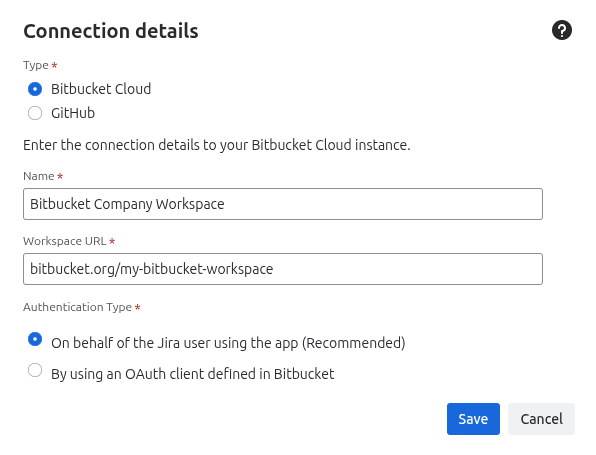
At Type, choose Bitbucket Cloud
-
At Name, type a friendly and representative name for the new connection. This is what the users will see when they configure the app gadgets.
-
At Workspace URL enter the URL of the Bitbucket Cloud instance that you want the app to integrate with.
-
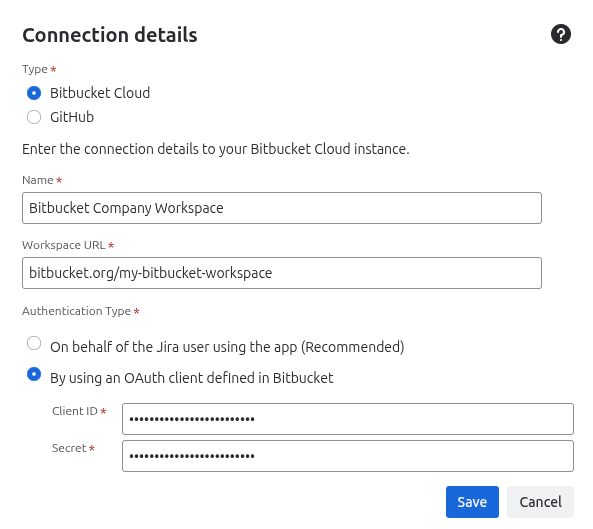
At Authentication Type choose between:
-
On behalf of the Jira users using the app (recommended). Choose this option if the Jira users who will use the gadgets also have access to the Bitbucket instance. In this case, when fetching data from Bitbucket to display in their gadgets, the application will use the Jira user’s access permissions. Before adding the connection, make sure that you (the Jira administrator) also have access permissions to Bitbucket.
-
By using an OAuth client defined in Bitbucket. Choose this option if you want the app's gadgets to display consistent, organization-wide reporting about commits, pull requests, and pipelines from Bitbucket to all Jira users, regardless of whether they have permissions in Bitbucket. In this case, before adding the connection, you must define an OAuth client in the Bibucket Cloud instance and configure it in a certain way, see Creating the OAuth Client in Bitbucket Cloud. After doing this, please provide the Client ID and Secret from the newly added OAuth client.
-
-
Click Save. The connection is validated and added.
At this point, the Jira users can start using the app gadgets to display information from the new Bitbucket Cloud connection.