
The Fields Configuration page in the app settings allows Jira admins to configure which fields are displayed, which fields are required, and the order in which they appear.
The page lists all default and custom fields in two separate tables. Not all default fields are customizable, and their display order cannot be changed. However, custom fields are fully configurable.
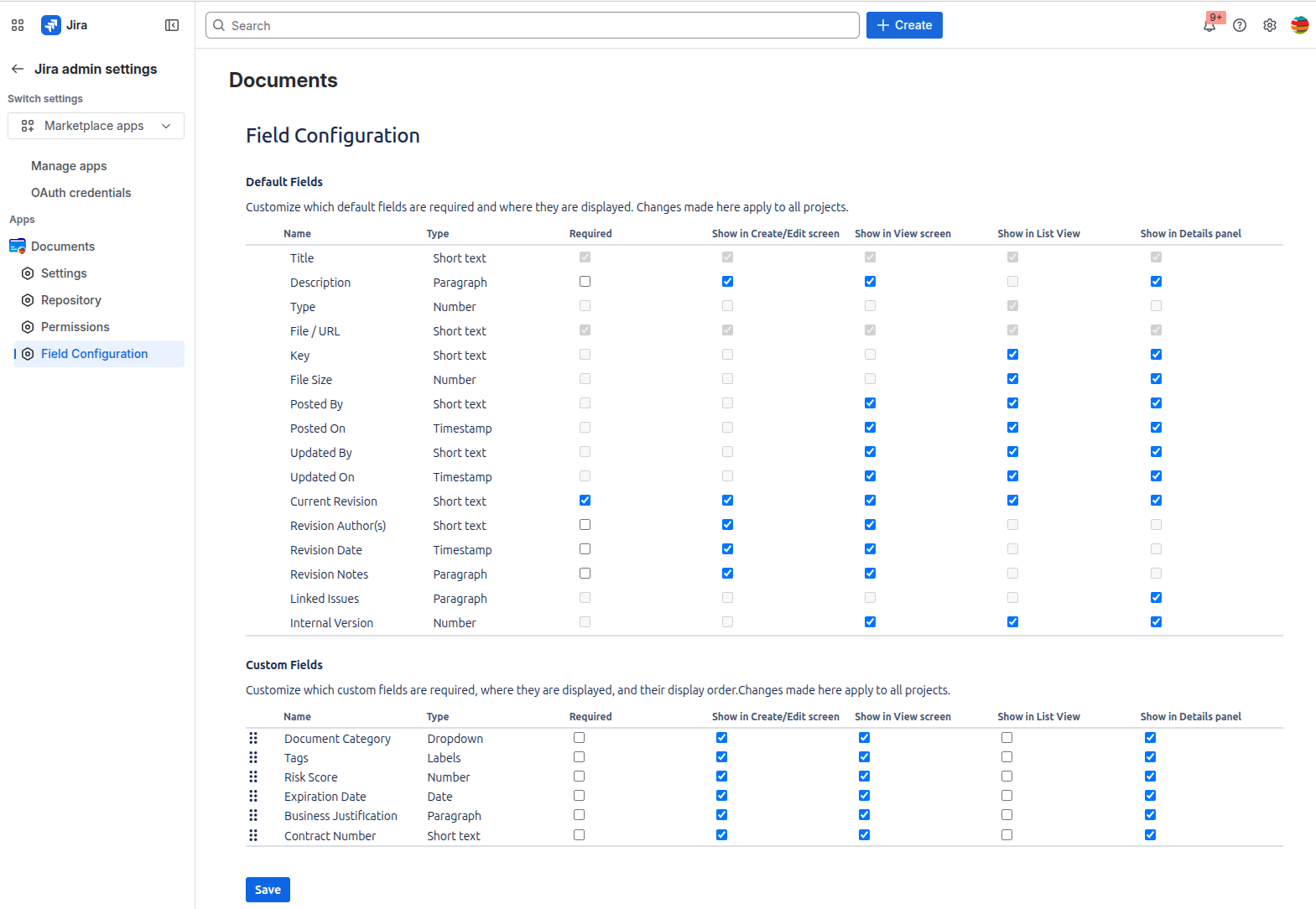
The available configurations are:
Required – Indicates whether a field must have a value. Users will not be able to create or update a document without entering a value for that field.
Show in Create/Edit Screen – Indicates whether a field should be visible in the document Create and Edit screens (forms).
Show in View Screen – Indicates whether a field should be visible in the document view and previous versions screens (forms).
Show in List View – Indicates whether a field should be visible as a column in the list view.
Show in Details panel – Indicates whether a field should be visible in the document details panel displayed on the right side of the Documents tab.
For custom fields, you can customize their display order by dragging and dropping them into the desired position.
NOTES
-
Custom fields are always displayed after the default fields.
-
The changes made here will affect all projects and users where the Documents app is used.