
Follow these steps to configure where linked documents will be displayed in the View Issue screen:
-
Navigate to Marketplace Apps > DOCUMENTS > Settings
-
On the Settings tab, you can toggle on and off the option Show 'Linked documents' in the mid‑page panel (instead of the right panel) of the View Issue screen”.
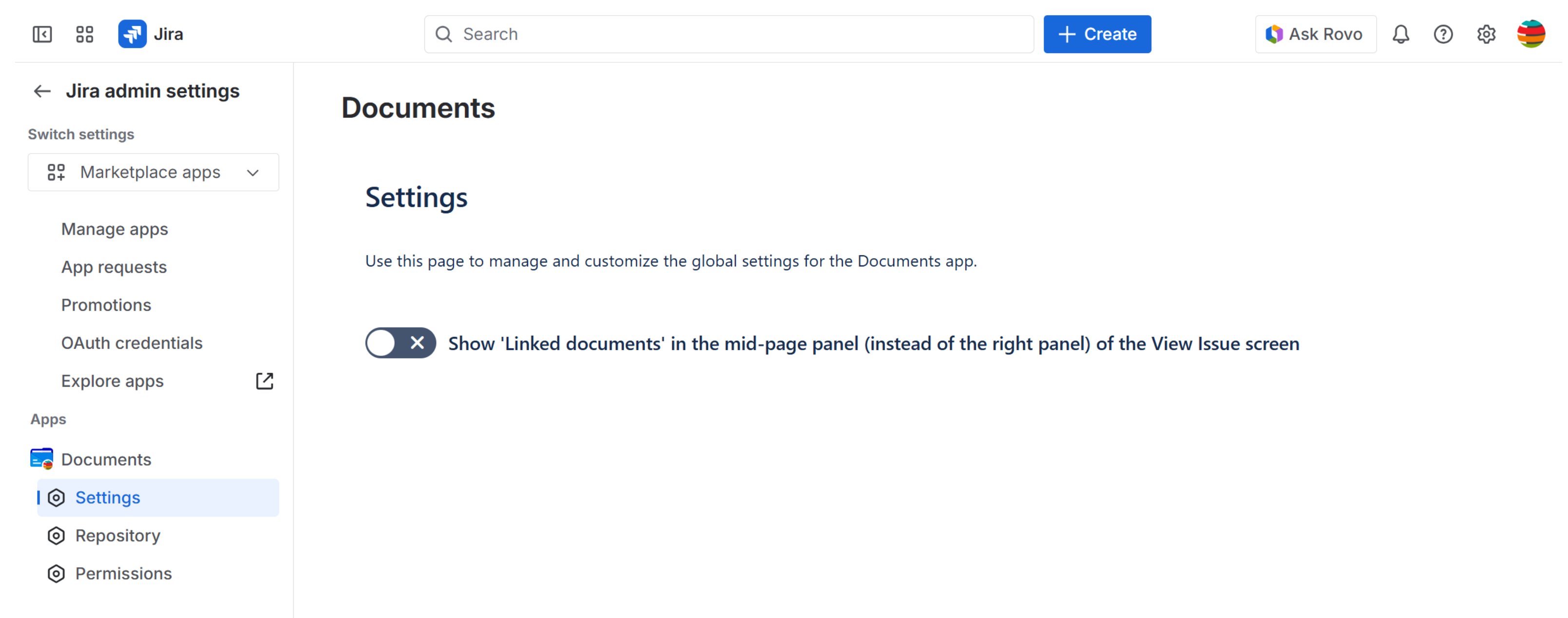
-
By default the setting is disabled (

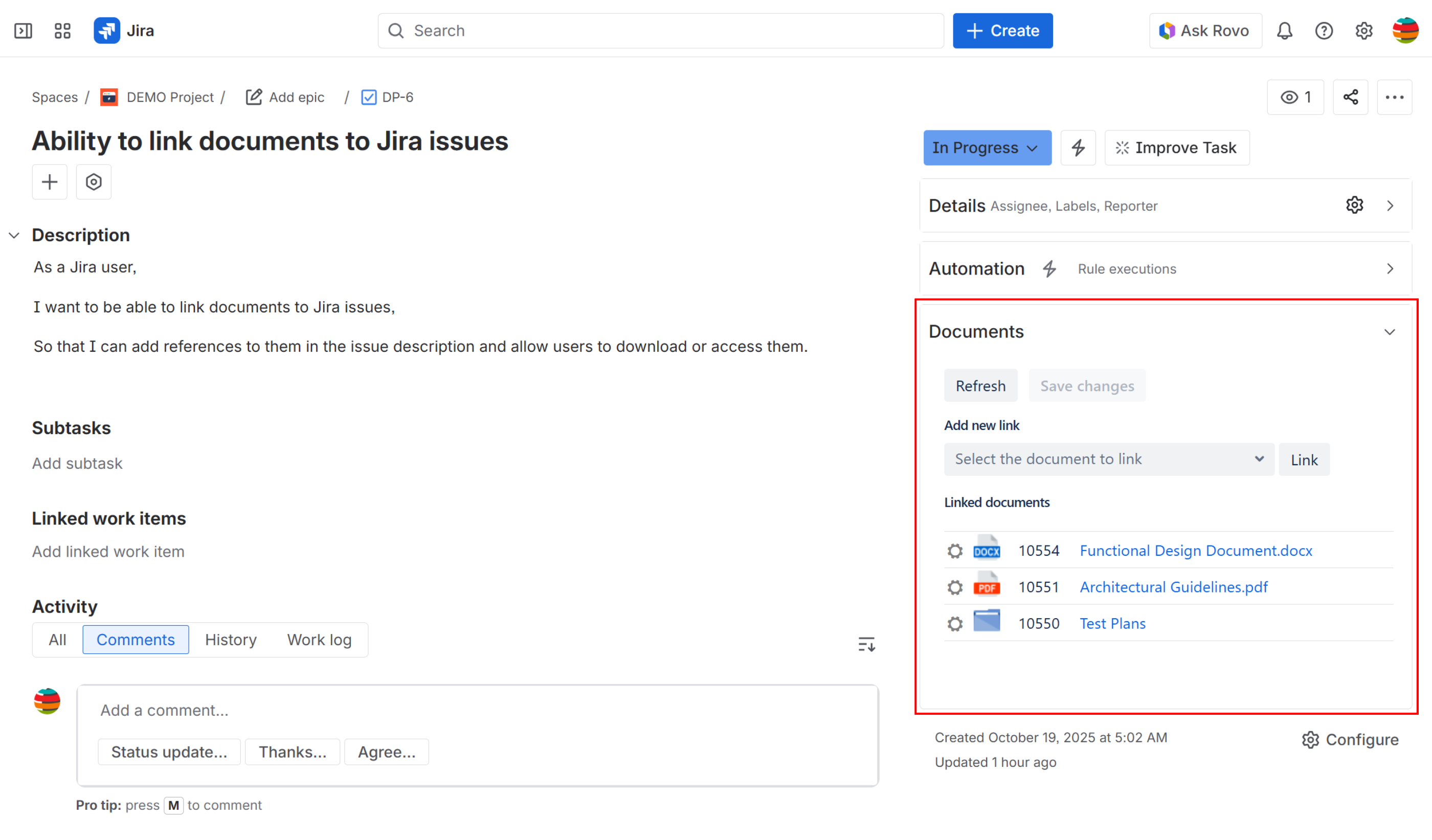
-
When the setting is enabled (

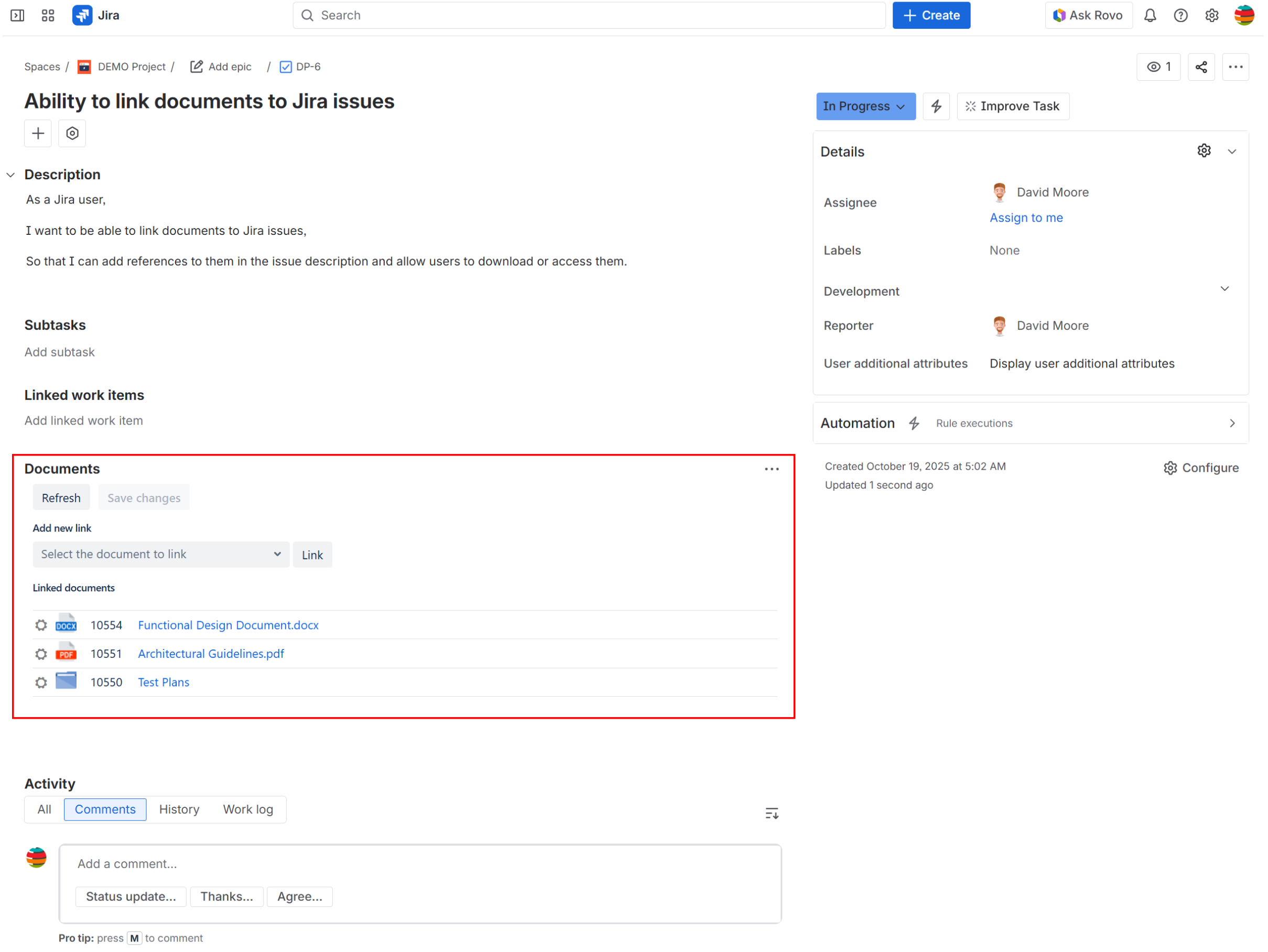
If this setting is enabled, the linked documents section will not be visible at first. The user must configure the visibility for linked documents in the View Issue screen in order for them to appear in the mid-page panel (see Viewing linked documents in Jira issue screen). This behavior is due to the way Atlassian designed this type of panel for third-party apps.