
You can restrict the access to the "Documents" tab or restrict specific privileges (create, edit, delete, move) regarding documents or folders through the app permissions configuration. Follow these steps to configure the app permissions:
-
Log into your Jira instance as an admin.
-
Navigate to Marketplace Apps > DOCUMENTS > Permissions.
-
On the Permissions tab, check the actions that you want to allow for each project role. The list includes the project roles from both company-managed and team-managed projects. See the table below for a complete description of the available permissions.
-
Click Save to apply the changes.
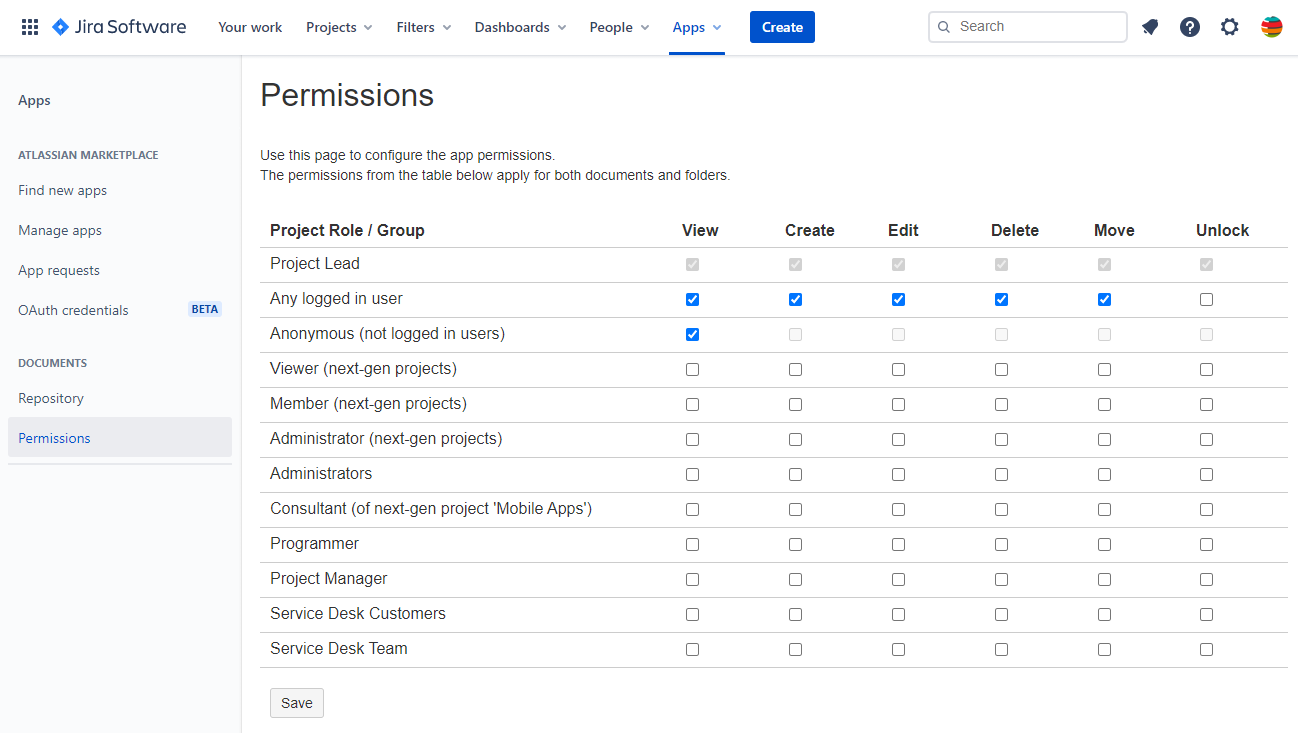
The table below shows details about the available permissions.
|
Permission |
Description |
|---|---|
|
View |
Check this option if you want the project role members to view and download the documents posted on the “Document” tab. The users who do not have this permission will get a permission error message when trying to access the Documents tab. |
|
Create |
Check this option if you want the project role members to be able to add documents and folders. The “Add Document” button will be hidden for the users who do not have this permission. |
|
Edit |
Check this option if you want the project role members to be able to edit documents and folders or to restore previous versions of the documents. The “Edit” option will be hidden for the users who do not have this permission. |
|
Delete |
Check this option if you want the project role members to be able to delete documents and folders. The “Delete” option will be hidden for the users who do not have this permission. |
|
Move |
Check this option if you want the project role members to be able to move documents and folders to another folder. The “Move” option will be hidden for the users who do not have this permission. |
|
Unlock |
Check this option if you want the project role members to be able to unlock editing for specific documents and folders. The “Unlock” option will be hidden for the users who do not have this permission, but it is always offered to the user who locked the document regardless of this setting. |
If a Jira user is member of a project role that has a specific permission but is also member of another project role that does not have that permission, it is considered that the user in question has that permission.
The Project Lead has full permissions and can perform all the actions on project's documents.