
Installing and configuring Great Gadgets in Jira Cloud
Follow these steps to install and configure Great Gadgets in your Jira Cloud instance:
-
Go to https://marketplace.atlassian.com/apps/1216564/great-gadgets-for-jira-cloud-agile-charts-reports-kpis?hosting=cloud&tab=installation
and log in with your Jira admin account.
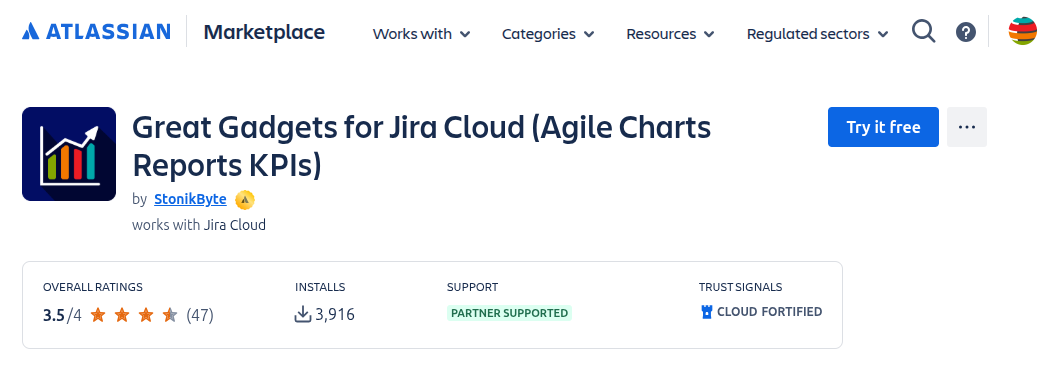
-
Click Try it free to start the installation process.
-
Select the app edition and choose the Atlassian site where you want to install the app.
-
Follow the on-screen instructions to complete the installation.
Complete the post-install configuration:
-
(Optional) Enable data residency. For details, see: Data Residency.
-
If your Jira Cloud instance uses IP allowlists, add the app IP addresses to your allowlists. For more information, see: Technical Notes | IP Allowlisting.
Once these steps are complete, the app is configured and ready to use. For more information, see:
How to use Great Gadgets | Using the gadgets in Jira.
Installing and configuring Great Gadgets in Confluence Cloud
Follow these steps to install and configure Great Gadgets in your Jira Cloud instance:
-
Go to https://marketplace.atlassian.com/apps/1226592/great-gadgets-for-confluence-agile-charts-custom-reports?hosting=cloud&tab=overview
and log in with your Confluence admin account.
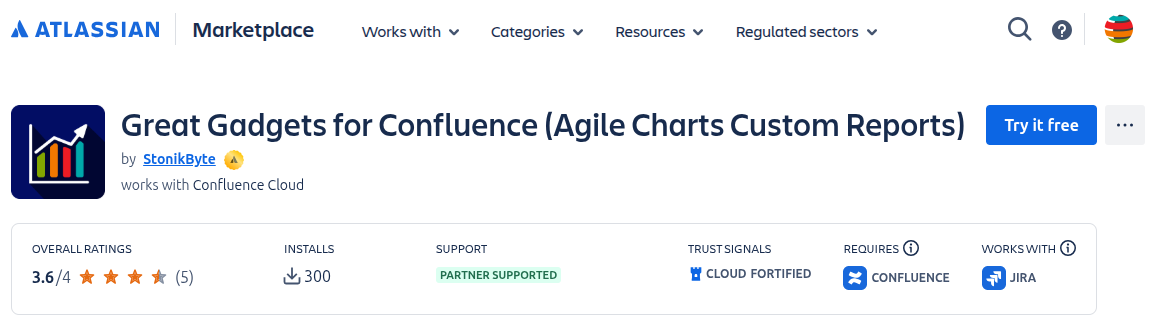
-
Click Try it free to start the installation process.
-
Select the app edition and choose the Atlassian site where you want to install the app. Choose to also connect the app to Jira and Jira Service Management (if available).
-
Follow the on-screen instructions to complete the installation.
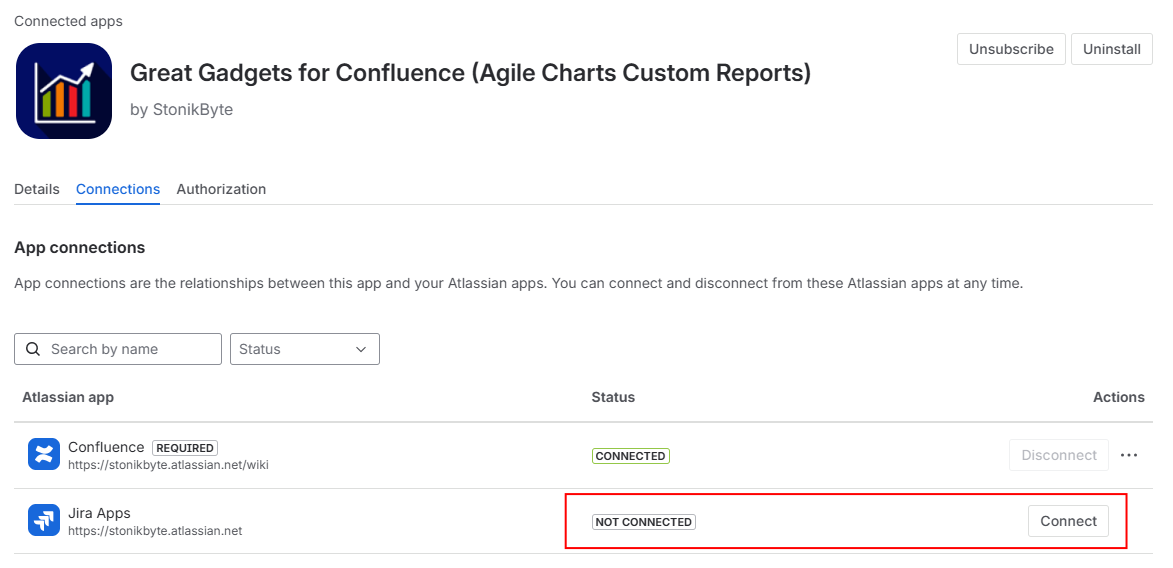
Now ensure that the app is connected to your Jira Cloud instance. This step is required because most app macros rely on Jira data and need access to retrieve it.
-
Go to Confluence Administration > Settings > Atlassian Marketplace > Manage apps, then click Take me there to be redirected to Connected Apps in the Administration section.
-
Click View app details for Great Gadgets for Confluence.
-
Open the Connections tab and under Jira Apps, click Connect (if it is not already connected).
Complete the post-install configuration:
-
(Optional) Enable data residency. For details, see: Data Residency.
-
If your Jira Cloud instance uses IP allowlists, add the app IP addresses to your allowlists. For more information, see: Technical Notes | IP Allowlisting.
Once these steps are complete, the app is configured and ready to use. For more information, see:
How to use Great Gadgets | Using the gadgets in Confluence Cloud.