
How to determine if your installed app version is Connect or Forge?
Follow these steps to check if your current app version is Connect or Forge.
-
Log on to Confluence Cloud as an administrator
-
Go to Confluence administration > Settings > Atlassian marketplace > Manage apps
-
Click Take me there to be redirected to Administration > Site settings > Connected apps page
-
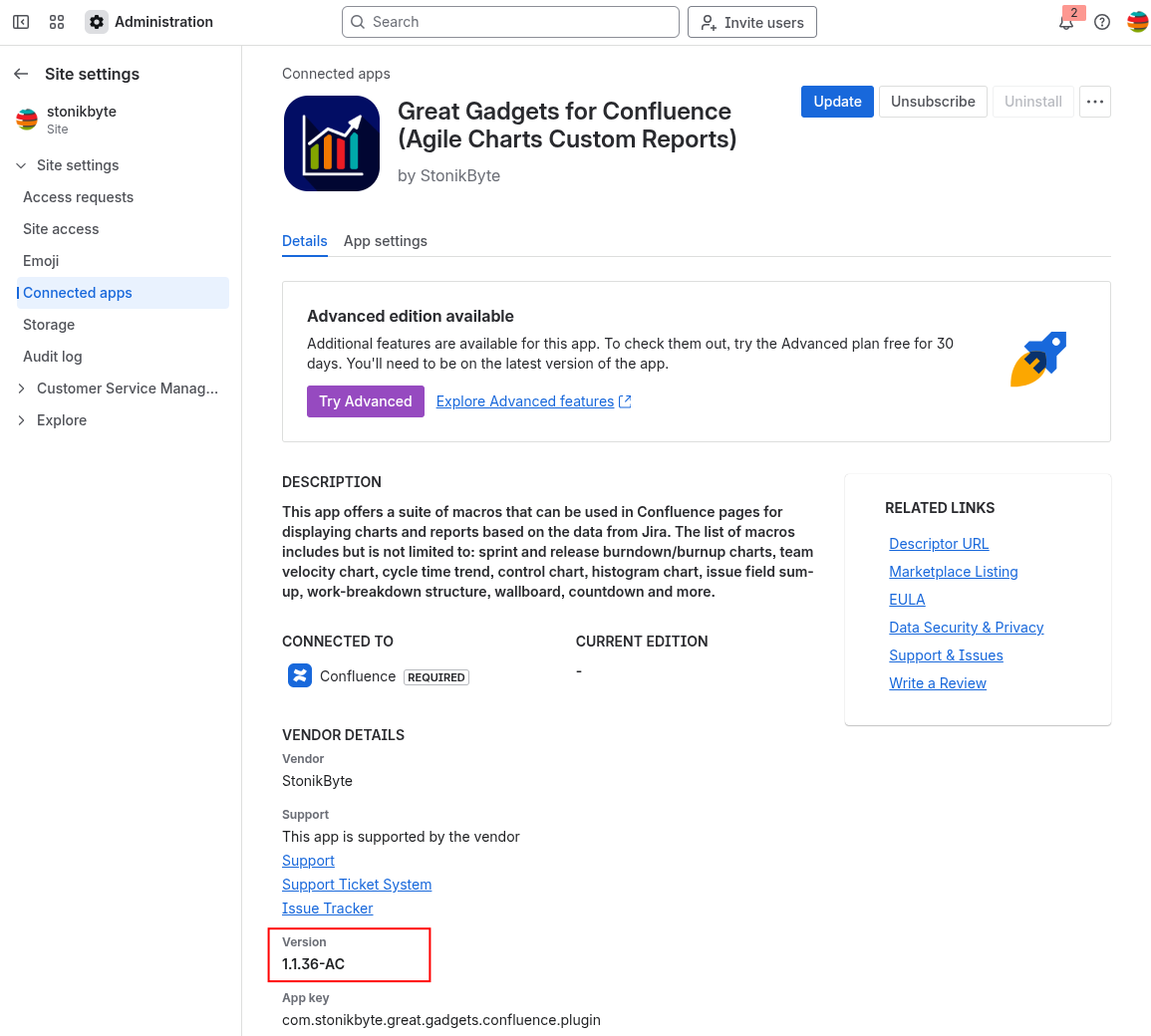
In the list of the connected apps, look for Great Gadgets for Confluence (Agile Charts Custom Reports) and click View app details.
-
Look at the Version number. If the app version ends in “-AC“ (e.g. 1.1.36-AC), then you have a Connect-based version of the app installed. In this case, please proceed further with the Forge upgrade steps described in the next sections.
-
If the app version does not end in "-AC", then you already have a Forge-based version of the app installed. In this case, you should upgrade to the latest Forge-based version of the app if the Update button is available and you're ready.
What is the impact of app upgrade from Connect to Forge?
Connect to Forge app upgrade is a necessary step as Atlassian has announced the retirement of the Atlassian Connect platform in the near future (see Announcing Connect End of Support: Timeline and Next Steps).
The app upgrade from Connect to Forge is expected to be a seamless process.
All the existing app macros and their configuration will remain in-place. In addition, all the app features available in the Connect-based version will be also available in the Forge-based app version.
However, in the unlikely event that you experience any issues during or after the upgrade, please contact StonikByte Support by creating a ticket in the support portal or by emailing support@stonikbyte.com.
How to upgrade from Connect to Forge
Once you determine that you have a Connect-based version installed, follow these steps to upgrade to the latest Forge-based version of the app:
-
Log on to Confluence Cloud as an administrator
-
Go to Confluence administration > Settings > Atlassian marketplace > Manage apps
-
Click Take me there to be redirected to Administration > Site settings > Connected apps page
-
In the list of the connected apps, look for Great Gadgets for Confluence (Agile Charts Custom Reports) and click View app details.
-
Click Update button to start the upgrade process
-
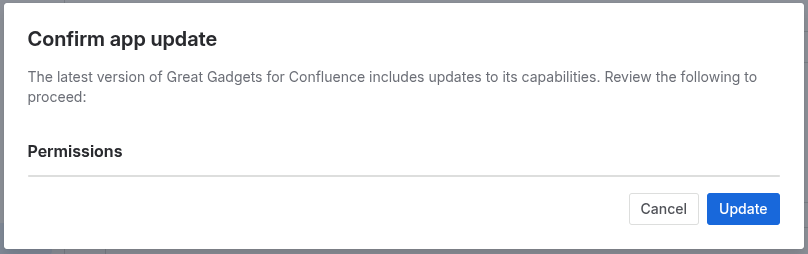
In the Confirm app update window click Update
-
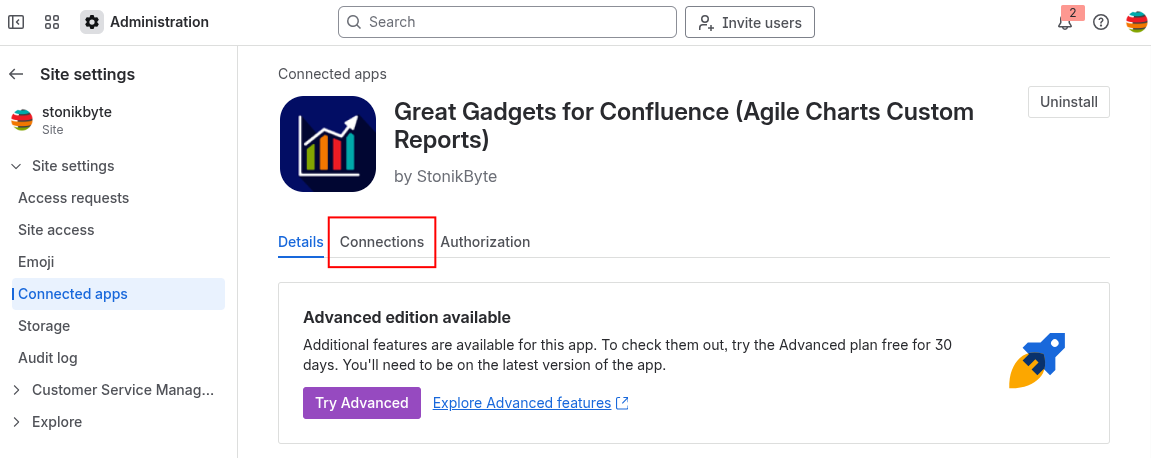
After the upgrade is finished, click the Connections tab
-
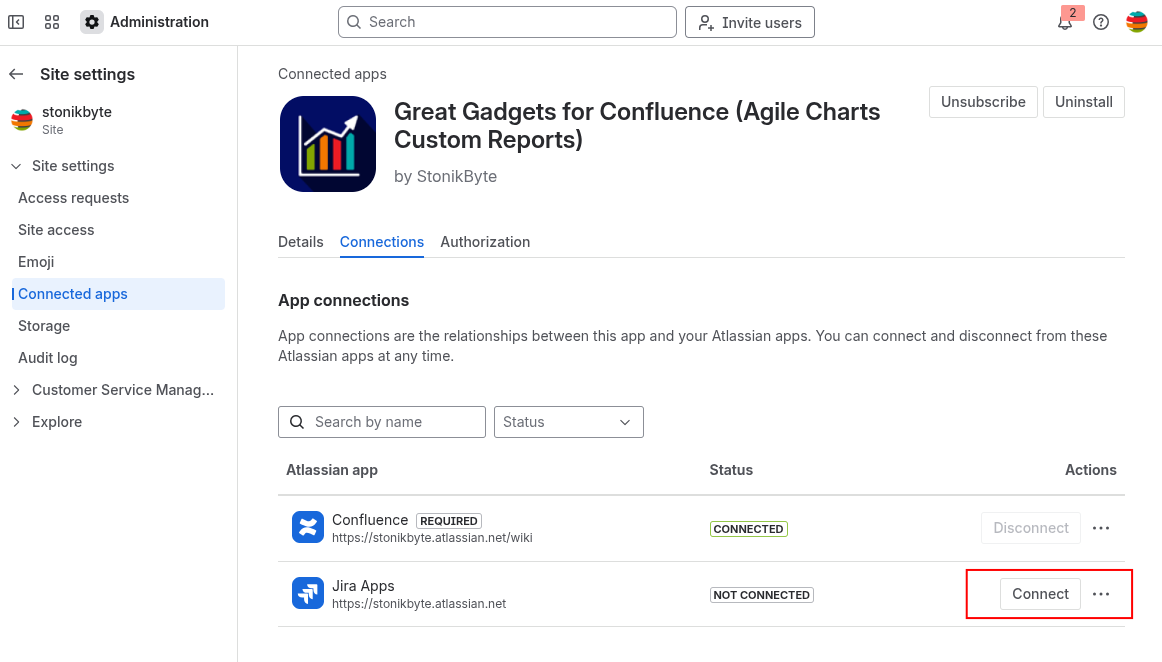
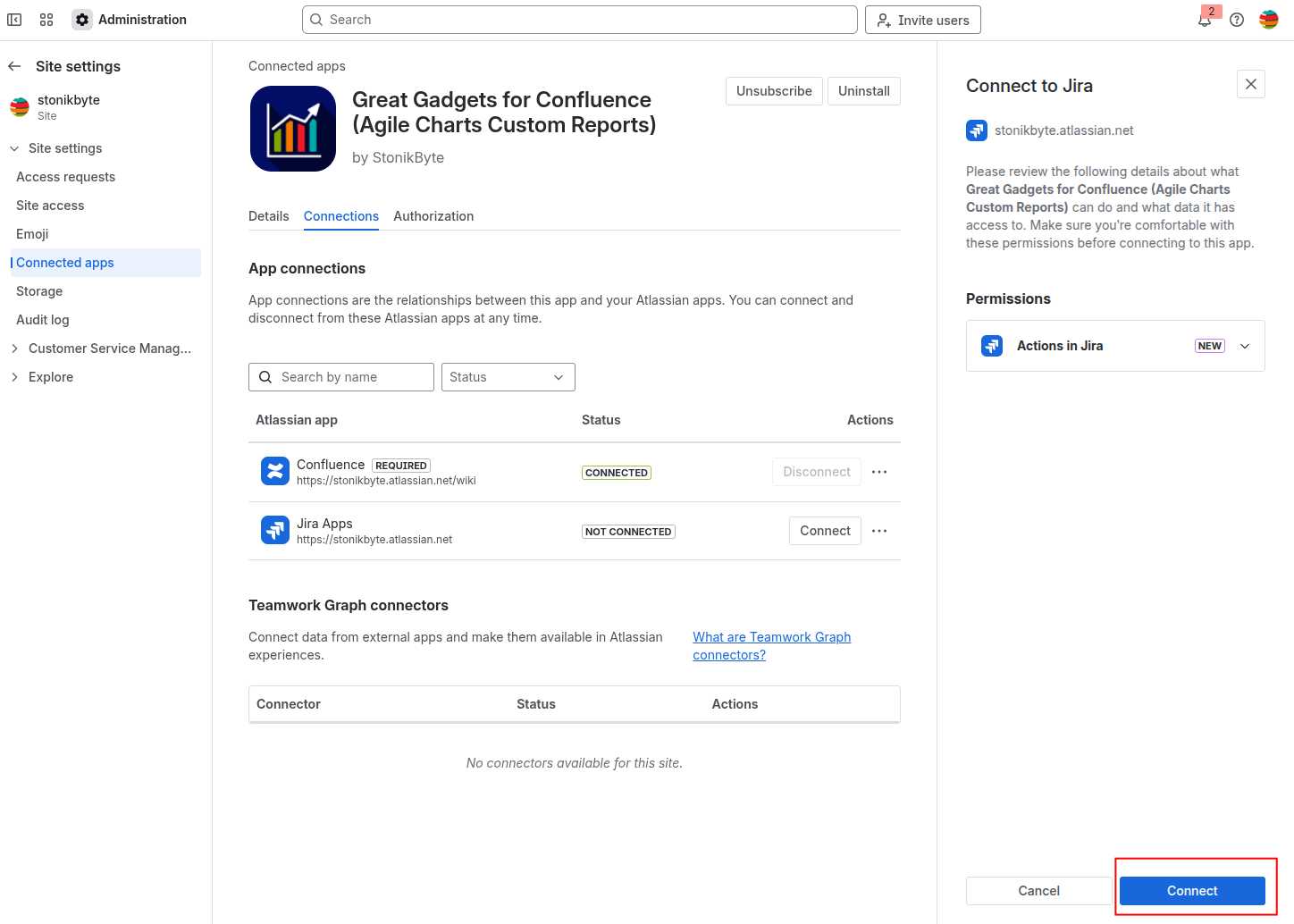
Click the Connect button under Jira Apps. This step is required because most app macros rely on Jira data and need access to retrieve it.
-
Review the app permissions and click Connect to continue.
-
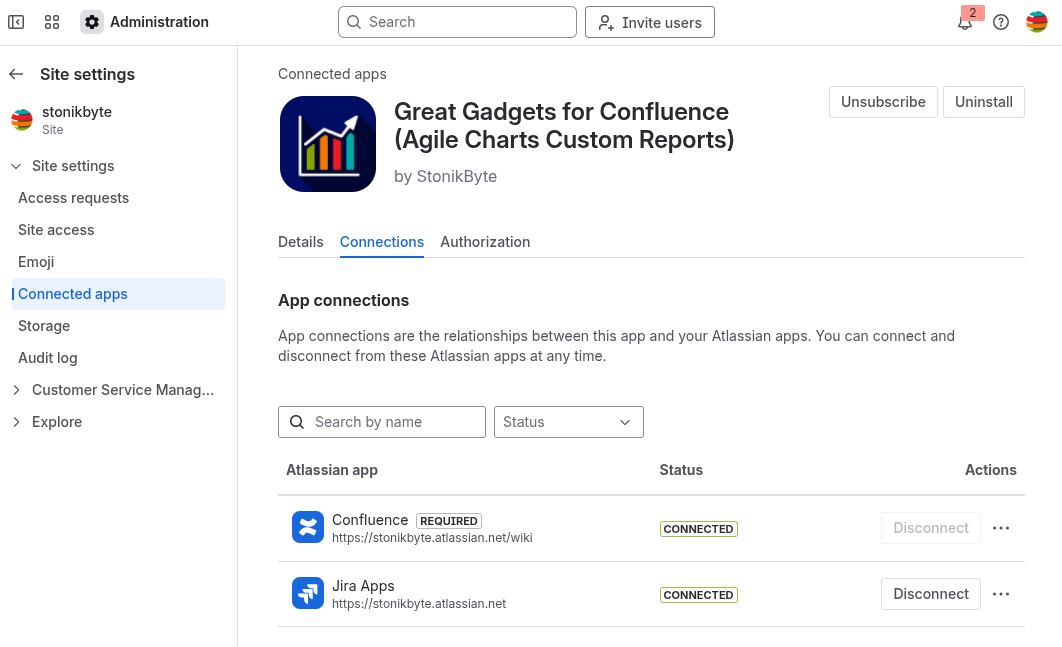
Wait until the connection is complete. This may take about a minute.
Continue by completing the post-upgrade configuration:
-
(Optional) Enable data residency. For details, see: Data Residency | Enabling Data Residency in Great Gadgets for Confluence Cloud.
-
If your Jira Cloud instance uses IP allowlists, add the app IP addresses to your allowlists. For more information, see: Technical Notes | IP Allowlisting.
Uninstall the old StonikByte Connector app, as it is no longer necessary:
-
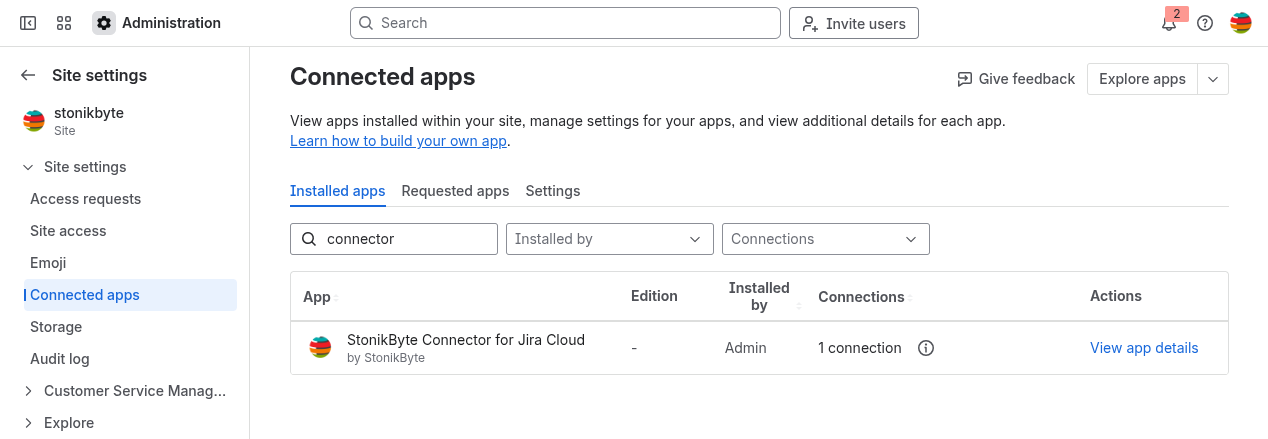
On the Connected apps page search for “connector” and click on its View app details.
-
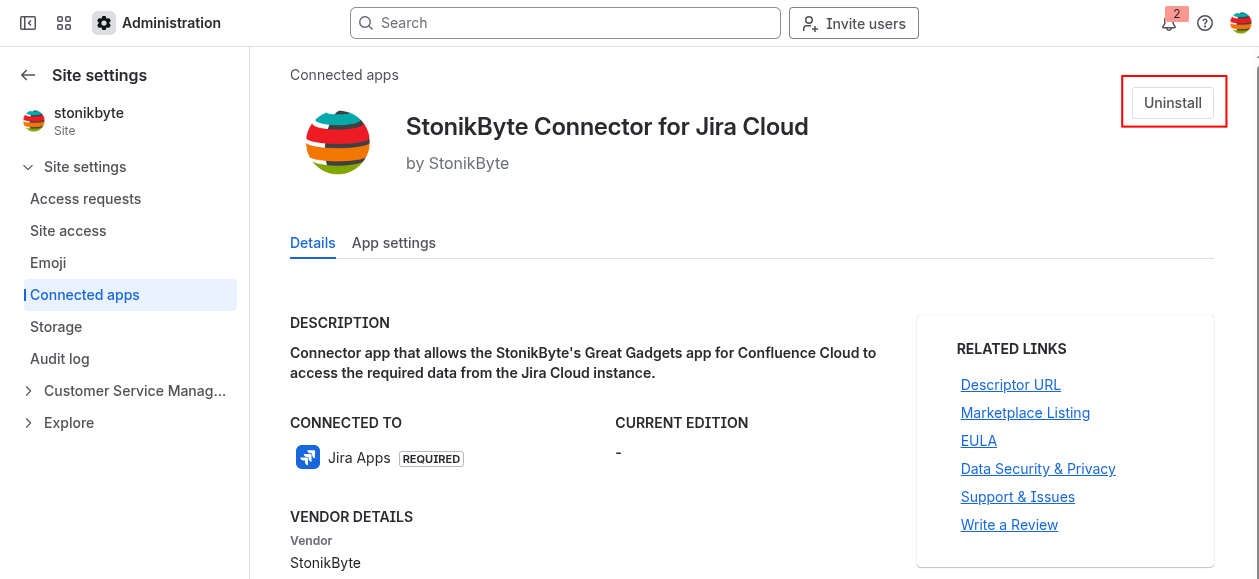
Click Uninstall.
Once these steps are complete, the Forge version is installed, configured, and ready to use. For more information, see: How to use Great Gadgets | Using the gadgets in Confluence Cloud.
For any questions, please contact StonikByte Support by creating a ticket in the support portal or by emailing support@stonikbyte.com.