If you ever tried to visualize the status of linked issues in your Jira dashboard, you may have discovered that there is no default gadget that can help you achieve that.
In daily operations, teams need to quickly answer questions like:
-
What is this issue blocked by?
-
Which related tasks are still open?
-
Is any dependency holding up progress?
Unfortunately, Jira does not provide a dashboard gadget that shows issues together with their linked items and their current status in a single, consolidated view. This leaves teams wasting time struggling to find workarounds but always ending up wondering: “How can I see the linked issues status in a dashboard?”
This guide shows you how to achieve exactly that — by using the Work Breakdown Structure (WBS) gadget from Great Gadgets app.
The Problem: No Build-in Gadget To Display Linked Issues Status In Dashboards
Jira allows you to link issues (is blocked by, blocks, relates to, clones, duplicates, etc.) so you can map dependencies or relationships, but they are only visible inside the issue detail screen. This means that you cannot see linked issue statuses without opening each individual issue.
You could try using the Filter Results gadget to display the linked issues, but it does not offer any information on the status of the linked issues (only the status of the parent issue).
This leaves project managers, product owners and team leads without the visibility they need to understand the real structure of the work.
How To Display The Status Of The Linked Issues In One View On Jira Dashboards
Great Gadgets offers the Work Breakdown Structure (WBS) gadget that delivers exactly what Jira is missing: A clean, consolidated view of all linked items and their status.
With the Work Breakdown Structure gadget from Great Gadgets, you finally get a way to:
-
Display linked issues
-
See their status instantly
-
Understand dependencies
-
Visualize the entire structure of your work
The Linked Issues View visualization mode in the Work Breakdown Structure gadget lets you visualize all linked items directly under their associated work items, along with their status.
💡You get a fully navigable structure of all related work — right on the dashboard.
Here’s how to display linked issues and their status using the Work Breakdown Structure (WBS) gadget:
1. Add the Work Breakdown Structure (WBS) Gadget to your dashboard
-
Make sure you already have Great Gadgets app installed in your Jira instance. If not, you can install it from the Atlassian Marketplace: Great Gadgets for Jira Cloud, Great Gadgets for Jira Data Center, Great Gadgets for Confluence.
-
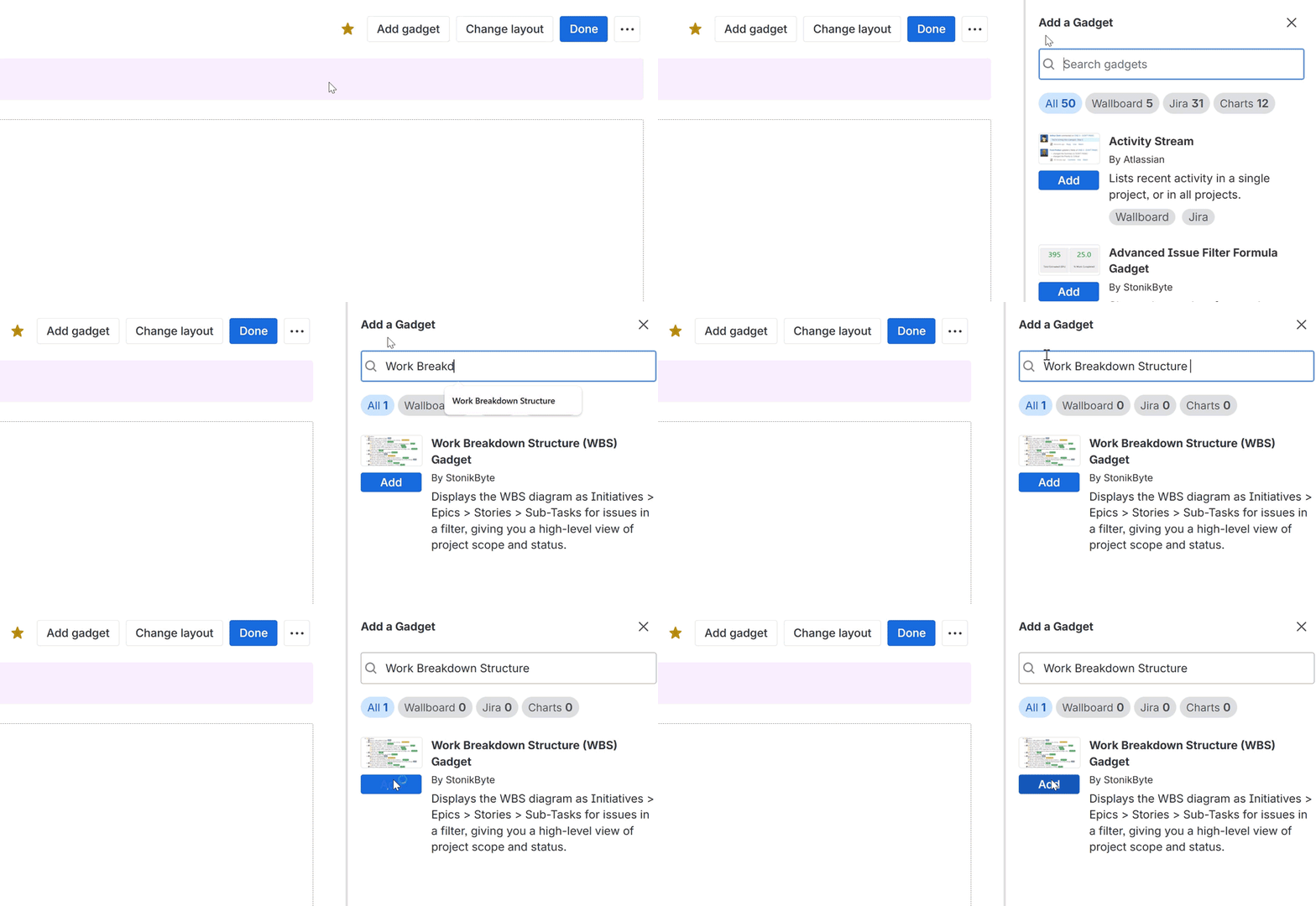
Go to your Jira dashboard and click Add Gadget.
-
Search for Work Breakdown Structure and click Add.
2. Configure the Gadget
-
Select a filter or enter a JQL that returns the work items you want to be displayed
-
Choose to expand all levels
-
Switch to Linked Issues View. For the gadget to display the work items together with their linked items and status, all you have to do is select the Linked Issues View option from the Visualization mode.
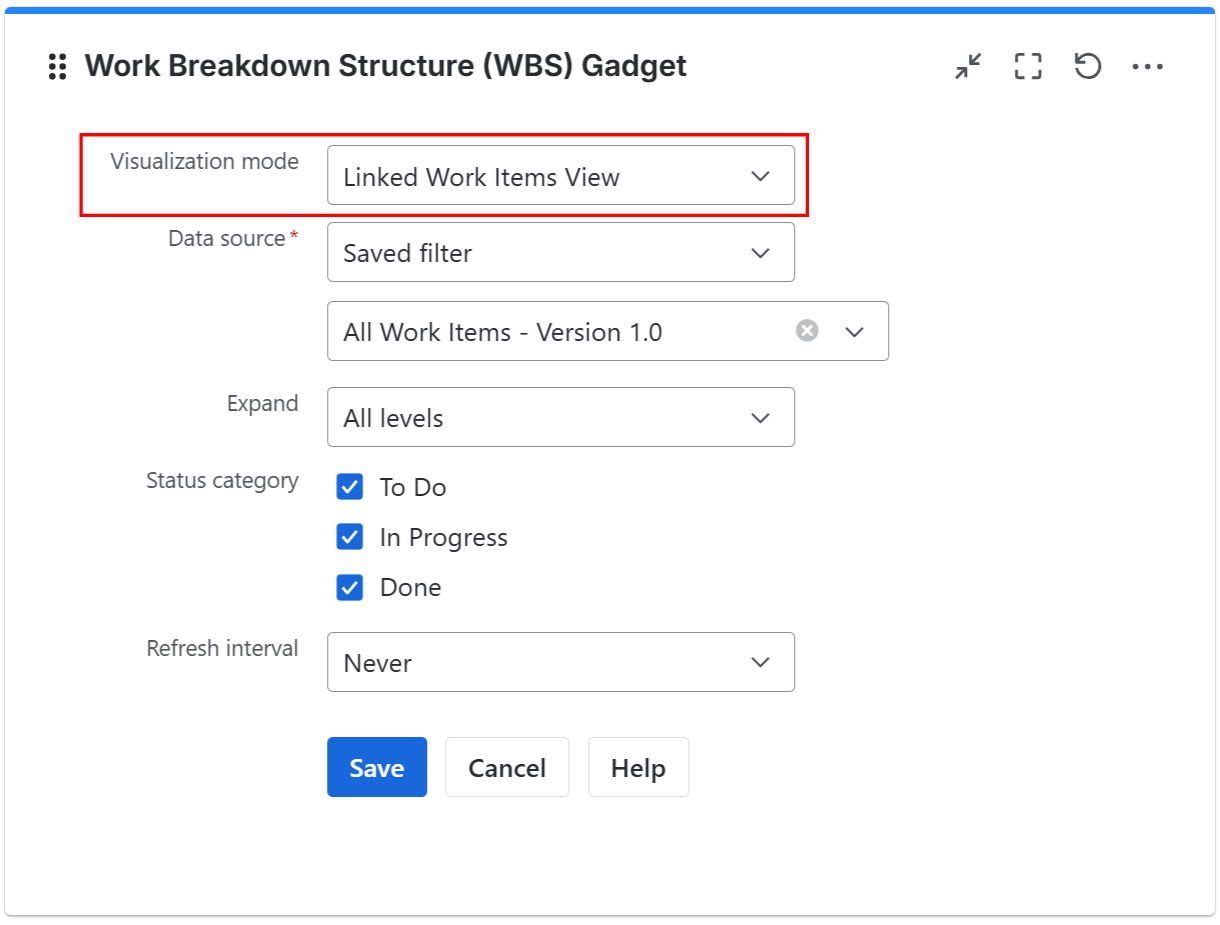
💡Tip: Filter by status category to show only issues in specific stages such as In Progress, To Do, or Done.
The Result: A clean, consolidated view of all linked items and their status
You get a clean, hierarchical view where dependencies, blockers, and related tasks are visible instantly — without opening individual issues.
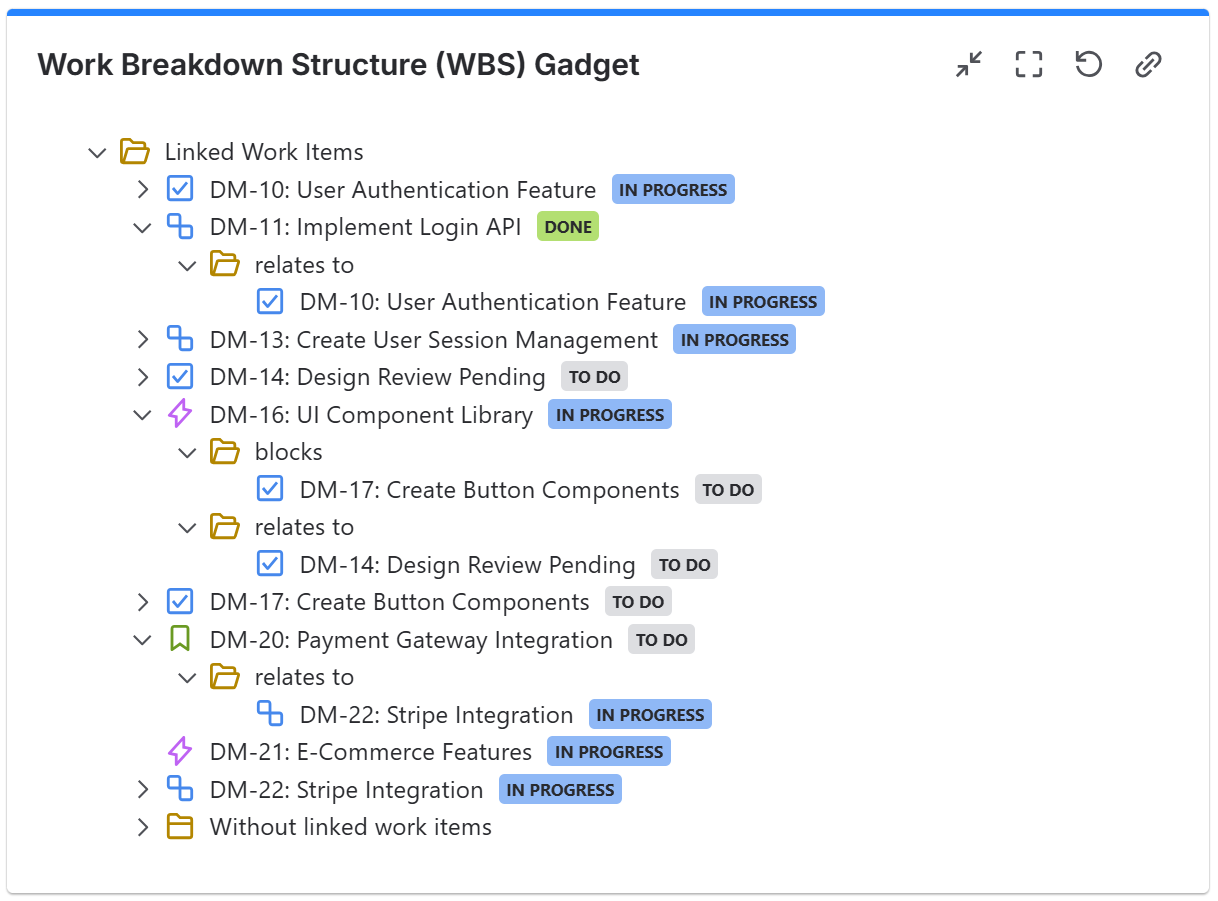
No more switching between issue screens. No more guessing dependencies. Everything appears in one structured view.
💡Tip: This gadget is also available as a macro in Confluence!
Why This Matters
Having linked issues and statuses visible in one dashboard has a major impact on how teams plan, coordinate and deliver work:
-
Faster identification of risks and blockers - If a story is blocked by a task in another project, you’ll see it immediately.
-
More accurate planning - Statuses of linked items directly influence delivery timelines.
-
Better cross-team visibility - Teams can understand how their work impacts others, especially in multi-project environments.
-
Improved communication with stakeholders - Instead of walking them through dozens of tickets, you show one structured view.
Still not convinced?
Our customer say that “This app brilliantly overcomes Jira’s limitations.” - Atlassian Marketplace review
👉 If you’d like to test it out, Great Gadgets is free for 30 days on the Atlassian Marketplace.
FAQ
Q: Can Jira show linked issues and their status in a dashboard by default?
No. Jira lets you view linked issues inside an individual issue, but it does not provide any native gadget or dashboard view that lists issues together with their linked issues and their statuses.
Q: Does the Work Breakdown Structure gadget support all link types?
Yes. The Linked Issues View works with any issue link type (e.g., blocks, is blocked by, relates to, caused by, etc.). These are taken directly from the issue’s linked issues panel.
Q: Can this gadget can display issues by their parent type relationships?
Yes. Besides the Linked Issues View, the WBS gadget can also display issues in an Hierarchy View: Initiatives → Epics → Parent Tasks → Subtasks.
Q: The Work Breakdown Structure is available only for Jira Cloud?
No. The Work Breakdown Structure gadget is also available in Great Gadgets for Jira Data Center and Great Gadgets for Confluence.
Related Resources: