
Overview
This gadget offers the Work Breakdown Structure (WBS) diagram in form of Initiatives > Epic > Parent Tasks > Sub-Tasks for the work items from a Jira Saved filter or a JQL. The initiatives are those work items defined in Atlassian's Advanced Roadmap app (formerly Jira Portfolio) that are superior to epics in the work items hierarchy. With this gadget, you can see the high-level status of your epics or the entire project. The work items displayed are ordered according to the ORDER BY clause of the filter used.
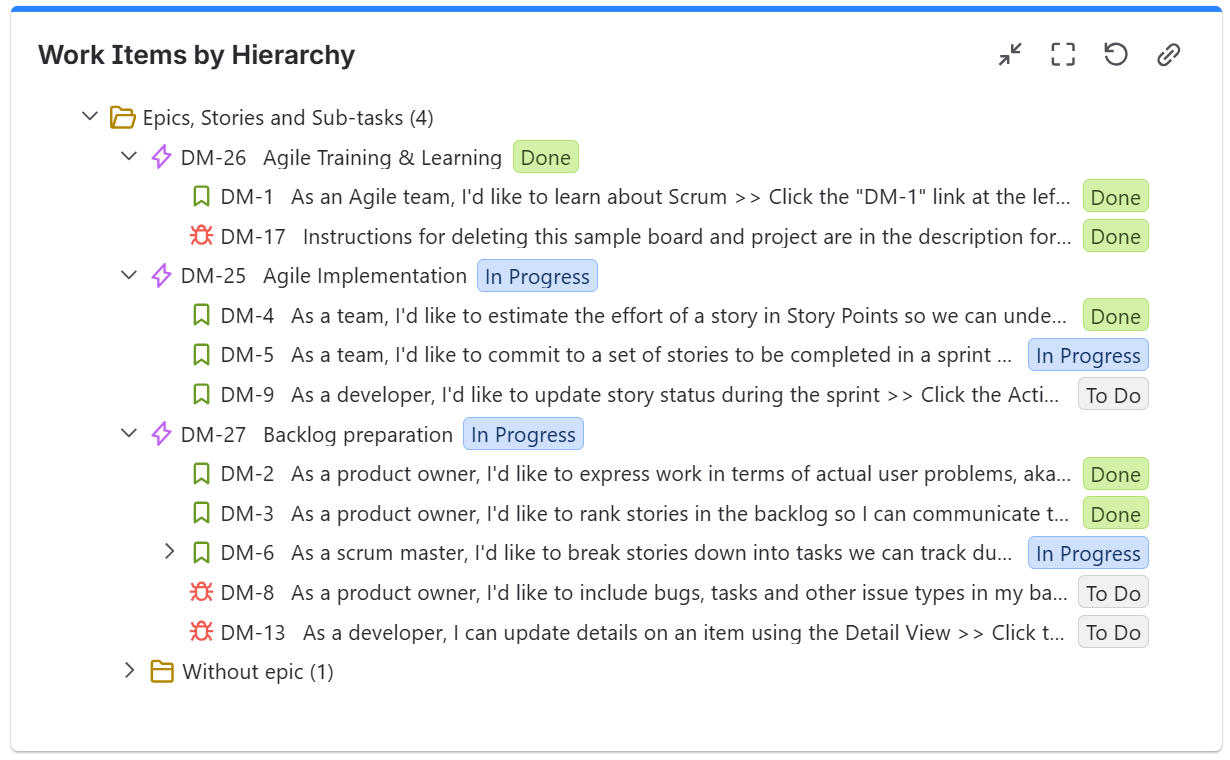
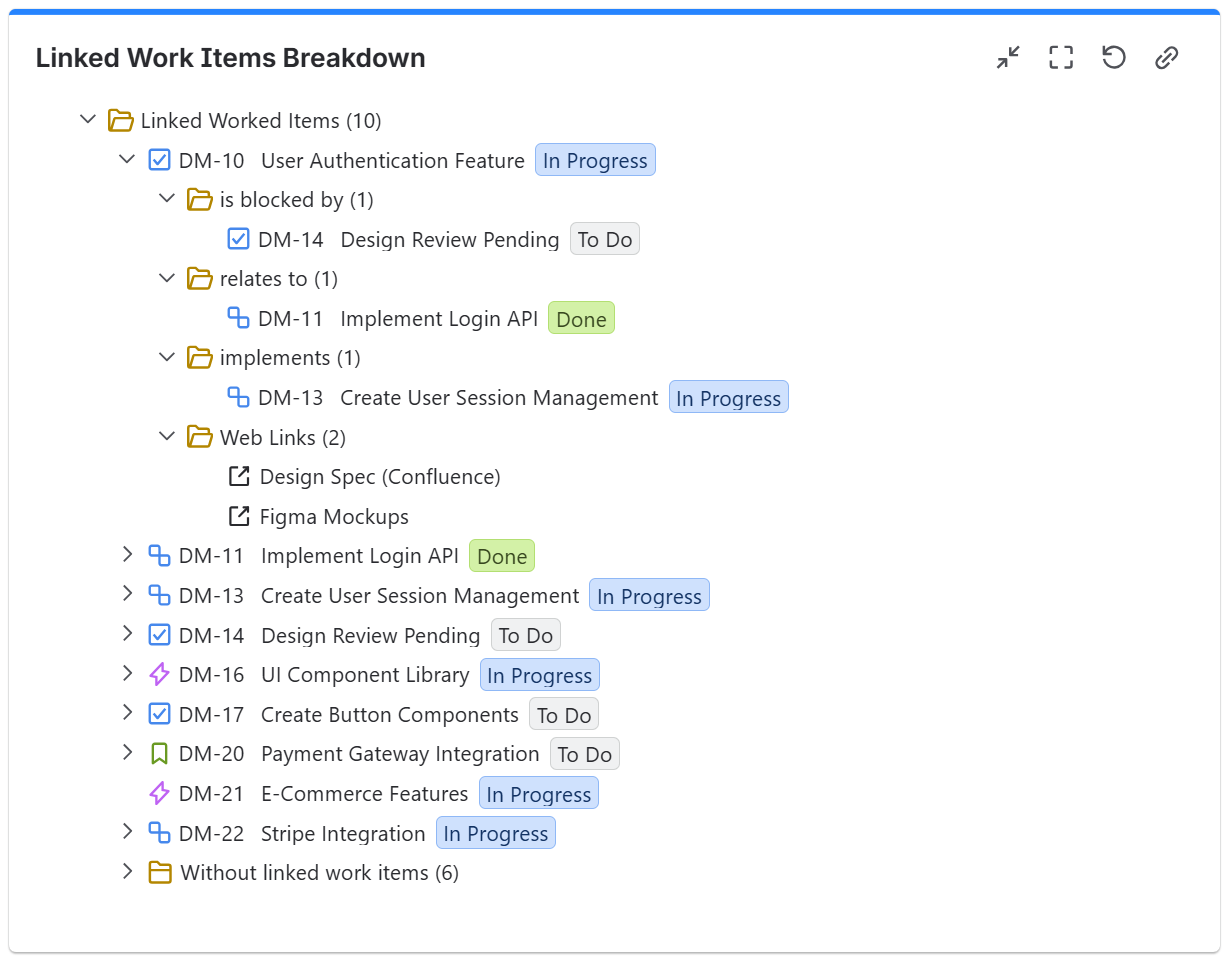
Additionally, the Work Breakdown Structure (WBS) gadget can display work items together with their linked work items and their status, providing a more complete view of how related work items connect and progress.
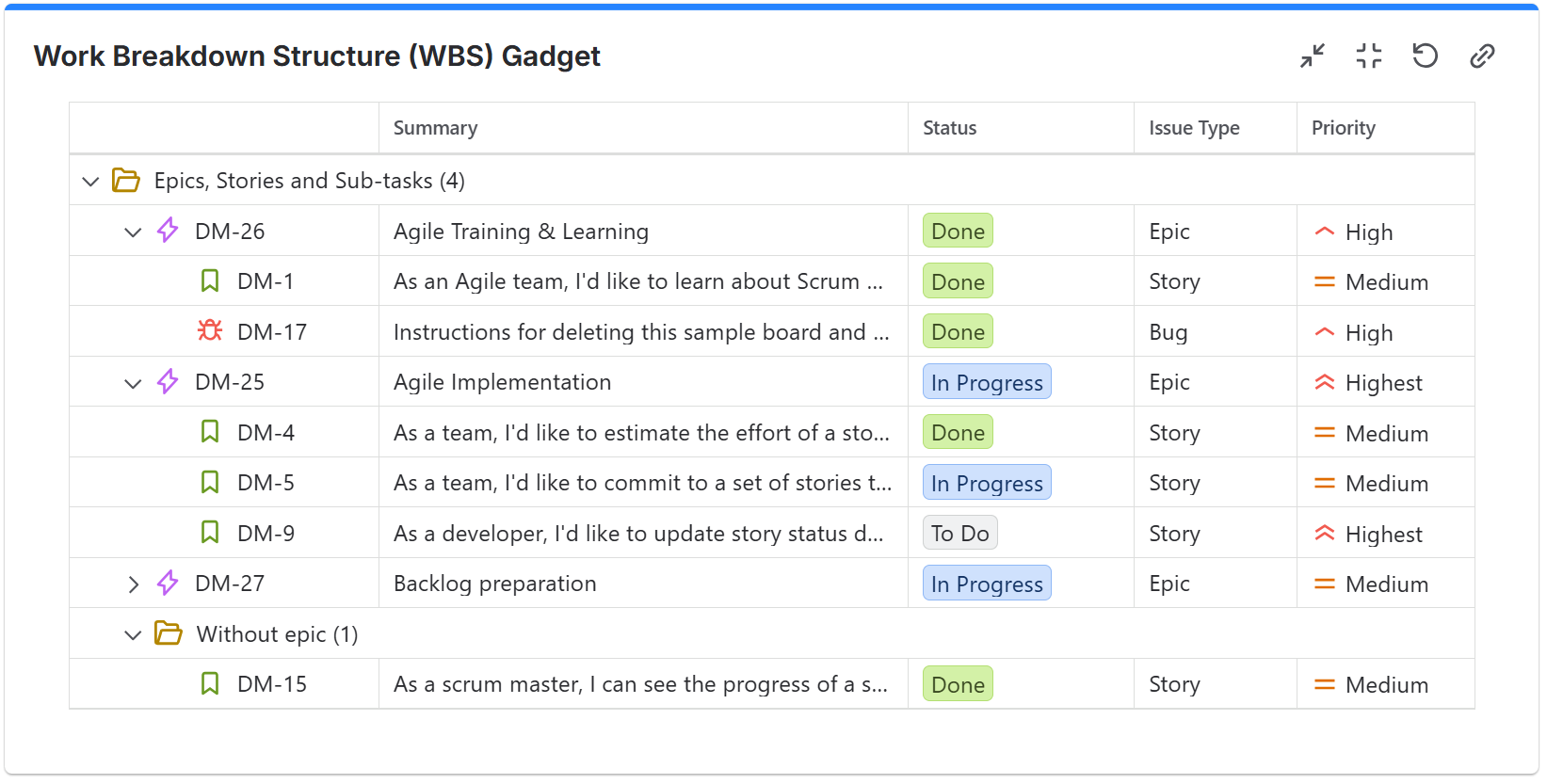
The gadget can also display work items in a structured table format with customizable columns. This gives flexibility to choose which fields to display, making it easier to analyze and review work items in a detailed, tabular layout.
Configuration
The settings of this gadget are divided in multiple tabs:
-
Data tab - contains the required settings of the gadget, such as title or data source
-
More Settings tab - contains the optional settings
Data tab
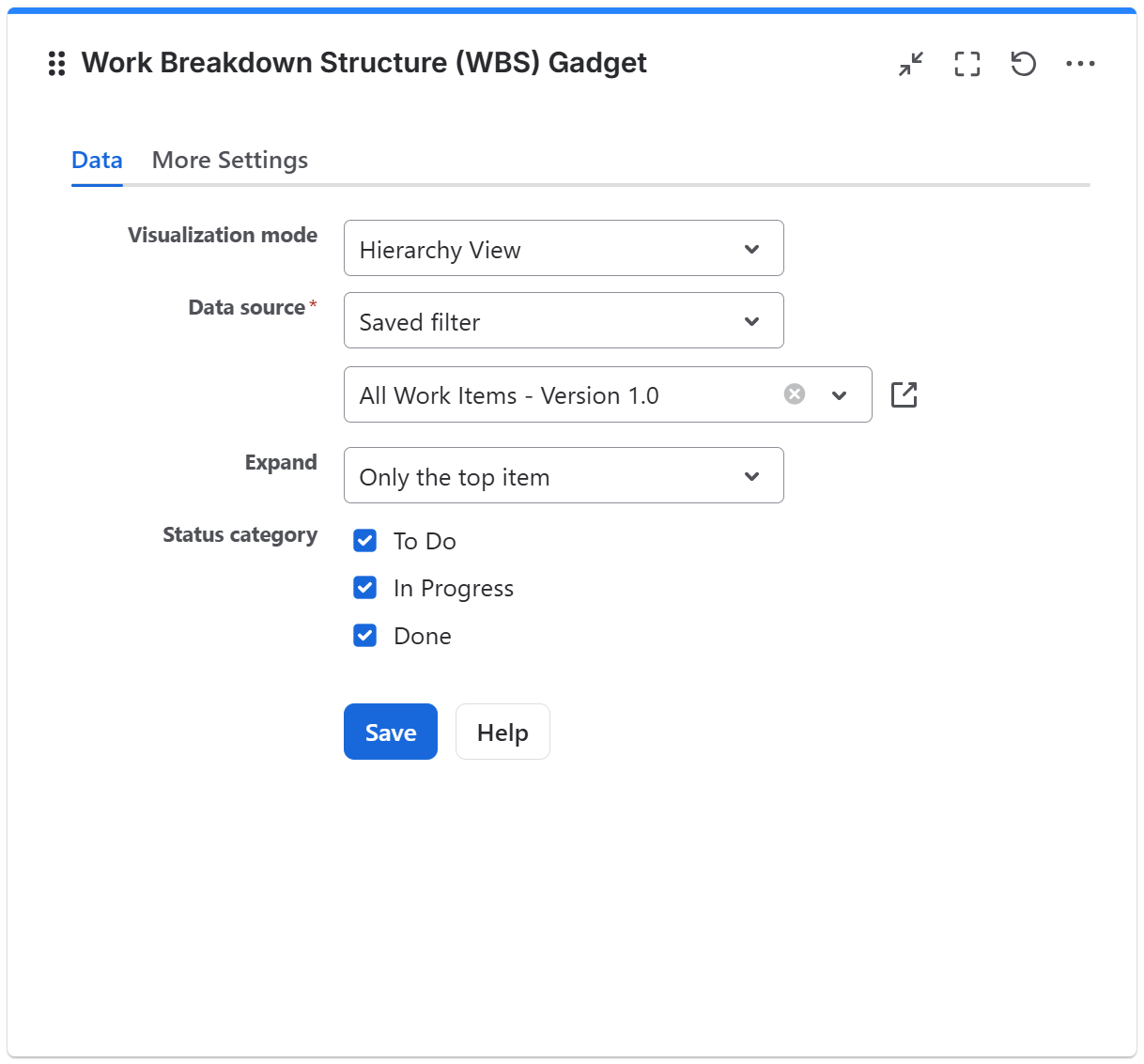
On this tab you can configure the required settings of the gadget.
|
Setting |
Description |
|---|---|
|
Visualization mode |
Specify the type of Visualization mode used by the gadget. You can choose between:
For an work item to appear in the hierarchy, it must be returned by the filter/JQL configured in the Data Source.
It is not required for linked work items to be returned by the filter/JQL configured in the Data Source in order for them to be displayed. |
|
Data Source |
Select the type of Data Source used by the gadget:
When a board or filter is selected as the data source, click the |
|
Expand |
Specify how many levels to be expanded by default right after displaying the gadget. |
|
Status Category |
Specify which status categories the displayed work items should belong to, based on their current status.
|

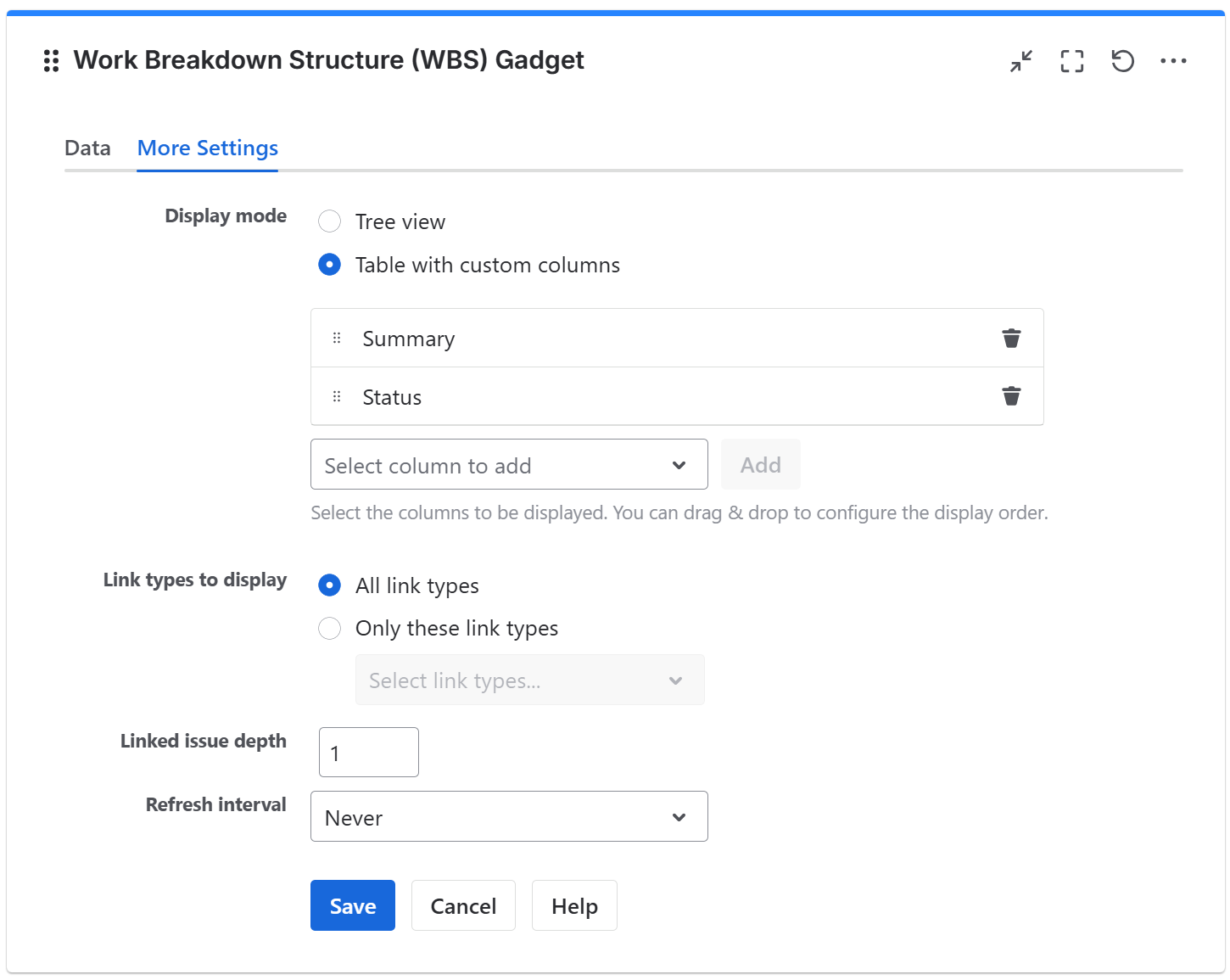
More Settings tab
On this tab you can configure the optional settings of the gadget.
|
Setting |
Description |
|---|---|
|
Display mode |
Select how you want the work items to be displayed by the gadget:
When Table with custom columns is selected, you can enter the columns to be displayed in the Select column to add section. |
|
Link types to display |
Specify the type of link types to be displayed by the gadget:
This option applies only when the visualization mode is set to “Linked Work Items View.” |
|
Linked issue depth |
Specify how many levels of linked issues to be displayed by the gadget. This option applies only when the visualization mode is set to “Linked Work Items View.” |
|
Refresh interval |
Choose how often the gadget will refresh automatically. |
Related blog articles
The following blog articles provide more information on how to use this gadget.