This page describes the manual procedure for migrating Great Gadgets from Jira Server / Data Center to Jira Cloud.
If you are migrating from Jira Data Center to Jira Cloud using the Jira Cloud Migration Assistant (JCMA), we recommend using our automated migration procedure instead. With the automated procedure, Great Gadgets gadgets and their configurations are migrated automatically as part of the JCMA migration, significantly reducing the need for manual reconfiguration.
If you are not using JCMA, or if you only have a small number of dashboards and gadgets to migrate, you can use the manual procedure described on this page.
With the manual procedure, the Great Gadgets gadgets and their configurations are not migrated automatically. After migrating your Jira data to Cloud, you will need to manually add and configure the Great Gadgets gadgets on the migrated dashboards to match their configuration in the original Server / Data Center instance.
Great Gadgets for Jira Cloud offers the same gadgets and functionality available in the Server / Data Center version, allowing your existing dashboards to be recreated in Jira Cloud. See also Feature parity between Server, Data Center and Cloud.
If you have additional questions or need assistance with the app migration, please contact StonikByte Support at support@stonikbyte.com.
Migration of app gadgets from Jira dashboards
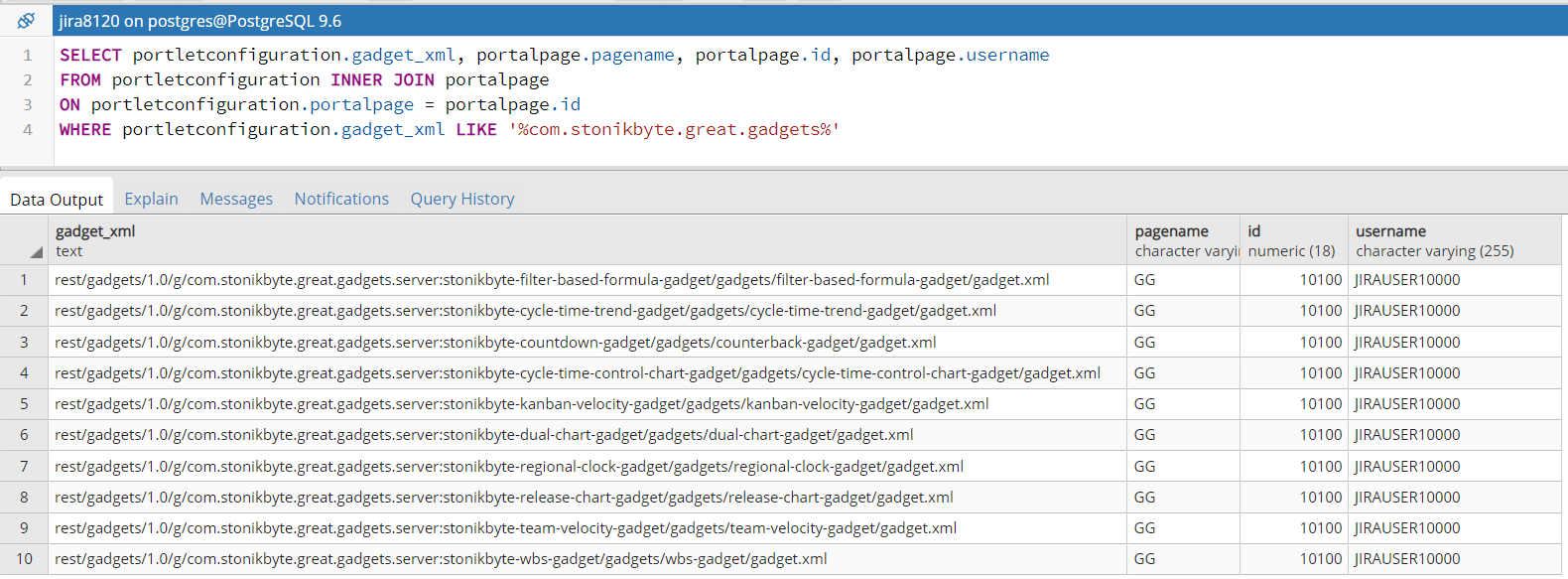
To determine the gadgets usage in your Jira Server / Data Center instance, you can run this SQL query on the Jira database:
SELECT portletconfiguration.gadget_xml, portalpage.pagename, portalpage.id, portalpage.username
FROM portletconfiguration INNER JOIN portalpage
ON portletconfiguration.portalpage = portalpage.id
WHERE portletconfiguration.gadget_xml LIKE '%com.stonikbyte.great.gadgets%'
This returns a list with the gadget identifier (gadget_xml), the name (pagename) and the identifier (id) of the dashboard where the gadget is located, and the user who added the gadget to the dashboard (username).
Our recommended approach is as follows:
-
Migrate your Jira data first using the appropriate migration tools provided by Atlassian.
During this process, your Jira dashboards may be migrated; however, the app gadgets will not be included. -
Install Great Gadgets in the new Jira Cloud instance.
-
If your new Jira Cloud instance uses IP allowlists, add the Great Gadgets IPs to the allowlist. See Technical Notes | IP Allowlisting.
-
Optionally, enable and configure Data Residency.
-
Run the SQL script above on the old Jira Data Center database to identify which gadgets were used, in which dashboards, and who the dashboard owners are.
-
Send the list of dashboards to each respective owner (via e-mail) and ask them to review and reconfigure their dashboards by manually re-adding and configuring the gadgets in the new Jira instance, matching their previous setup in Jira Data Center.
This approach distributes the effort across multiple users and may also lead to cleanup, as some dashboards or gadgets may no longer be needed.
Migration of app gadgets used as macros in Confluence pages
If you had the app gadgets imported as macros in Confluence Data Center, you will not be able to do the same on Cloud because Confluence Cloud does not support importing gadgets from Jira Cloud apps. You can preserve the functionality of the macros added to Confluence pages by installing Great Gadgets for Confluence Cloud and then manually re-configuring the macros from the Confluence pages. The app macros that rely on data from Jira cannot connect to the old Data Center instance, so make sure to migrate Jira first in order to preserve macro functionality in Confluence.
On Jira Cloud, apps have their own “app account”, which is not visible in User Management.
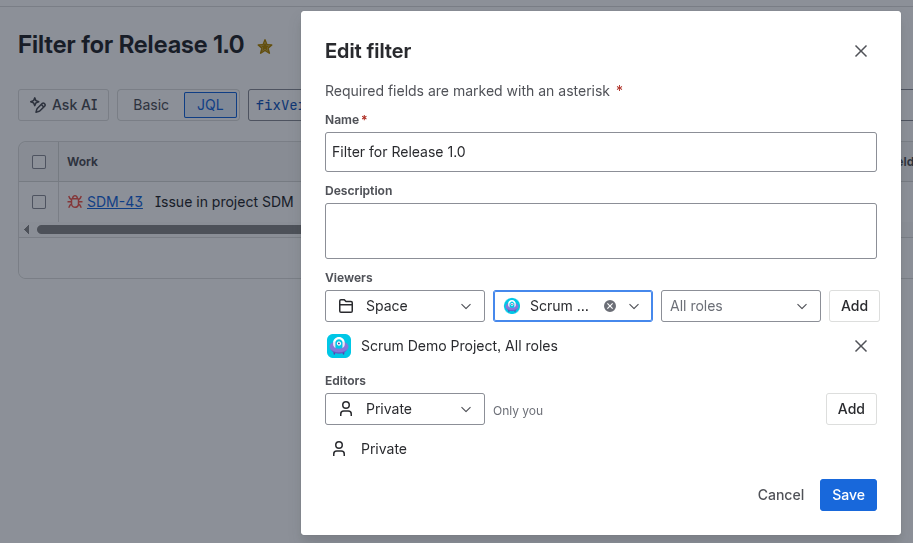
Some app gadgets may not display data if the filters configured for them are not accessible to the app account. To resolve this issue, ensure that the filters used in the gadget configuration are shared (Viewer permissions) with either a Jira space (recommended) or with My organization. This can be done by editing the filter’s details.