Migration of Jira and/or Confluence data from a Cloud instance to another Cloud instance is usually done by using data copying process recommended by Atlassian (see https://support.atlassian.com/organization-administration/docs/copy-product-data/).
Please consider the following when planning a Cloud to Cloud migration of a Jira and/or Confluence instance that has the Great Gadgets app installed.
Migration of app data during a Jira Cloud-to-Cloud migration
Great Gadgets for Jira Cloud mainly consists of gadgets that are added to Jira dashboards.
Currently, Atlassian’s migration tools support dashboard migration between Jira Cloud instances; however, gadgets provided by third-party apps are not migrated as part of this process. As a result, migrating Jira dashboards along with the app gadgets must be done manually.
To complete the migration:
-
Migrate your Jira Cloud data (projects, filters, boards, fields, statuses, etc.) to the new Jira Cloud instance using Atlassian’s tools. For more details, see: https://support.atlassian.com/organization-administration/docs/copy-product-data/
-
After the data migration is complete, install Great Gadgets for Jira Cloud in the new Jira Cloud instance.
-
If Data Residency was enabled in the old Jira Cloud instance, configure the same settings in the new instance. See: Data Residency.
-
If you use IP allowlists in the new Jira Cloud instance, make sure to allow the IP addresses required by the app in the new instance. See Technical Notes | IP Allowlisting.
-
Since Atlassian tool migrates dashboards without app gadgets, you need to manually add the app gadgets to the migrated Jira dashboards and configure them to match the setup in the original Jira Cloud instance.
Migration of app data during a Confluence Cloud-to-Cloud migration
Great Gadgets for Confluence Cloud consists only of macros that are added to Confluence pages. The app has no global or user-specific settings, so the only data that needs to be migrated is the macros added to Confluence pages along with their configuration settings.
When you migrate Confluence spaces from one Confluence Cloud instance to another Cloud instance, the app macros embedded in pages (and their configuration settings) are automatically migrated.
Once the spaces are migrated to the new Confluence instance, you will also need to install Great Gadgets for Confluence Cloud in the new Confluence instance. See Using the gadgets in Confluence Cloud.
Most of the app macros use data from the Jira Cloud instance linked to the Confluence Cloud instance, so they will not be functional at this stage. To restore the functionality of the macros, please do the following:
-
Migrate your Jira Cloud data (projects, filters, boards, fields, states, etc.) to the Jira Cloud instance that is connected to the new Confluence Cloud instance, if it has not already been migrated. This can be done by using the tools provided by Atlassian, see https://support.atlassian.com/organization-administration/docs/copy-product-data/.
-
After you migrated your Jira Cloud data to the new Jira Cloud instance, the migrated objects (projects, filters, boards, etc.) have different IDs in the new instance and therefore will not match the IDs in the migrated macro configuration, so they will need to be manually reconfigured to point to the migrated Jira objects (projects, filters, fields, states, etc.). Our advice is to ask the space and page owners to check and reconfigure the macros one by one.
-
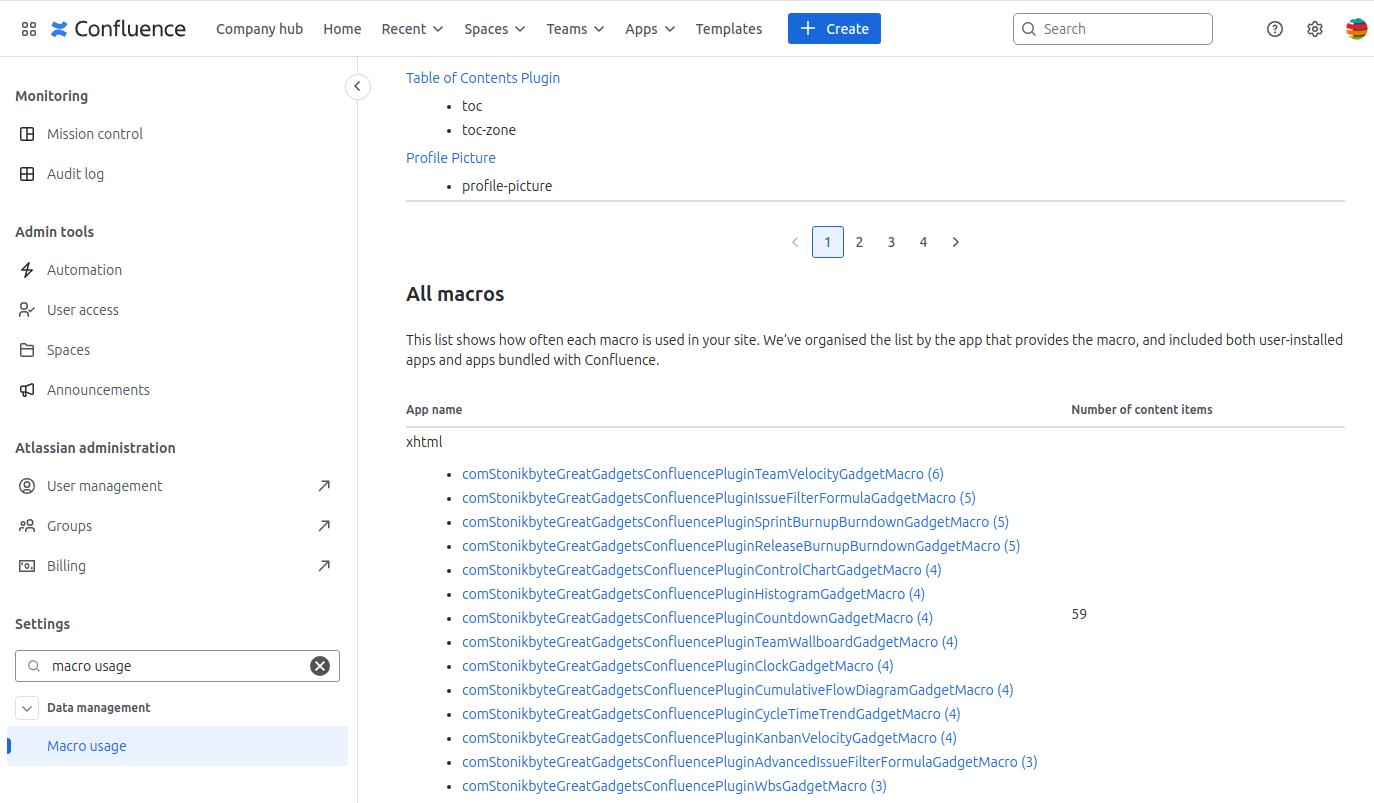
To determine the usage of each macro, go to Confluence administration > Data management > Macro usage. The app gadgets are the ones having “comStonikbyteGreatGadgetsConfluencePlugin“ in their name. Clicking link of a used macro, will show the Confluence pages that use that macro.