Overview
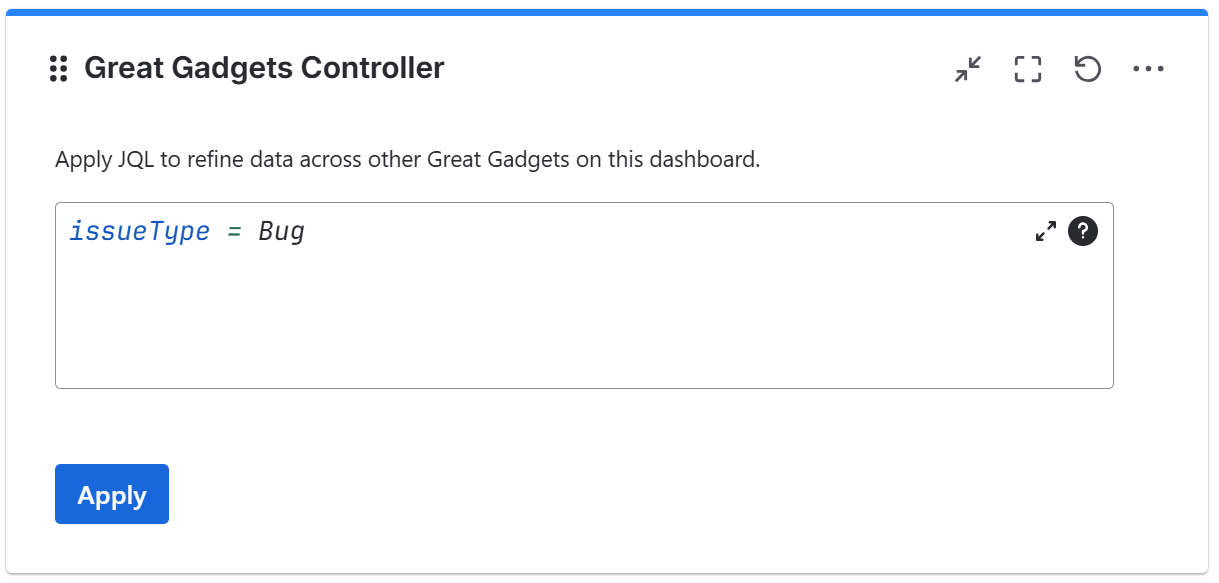
This is a controller gadget that lets you apply additional filtering to other gadgets on the dashboard. It’s especially useful for visualizing charts based on a subset of issues, such as a specific project or team, without needing to create separate dashboards for each.
This gadget is available only in Great Gadgets for Jira Cloud.
How to Use It
Currently, the filter is applied either as custom JQL or by selecting one of the predefined filters saved as presets in the gadget configuration.
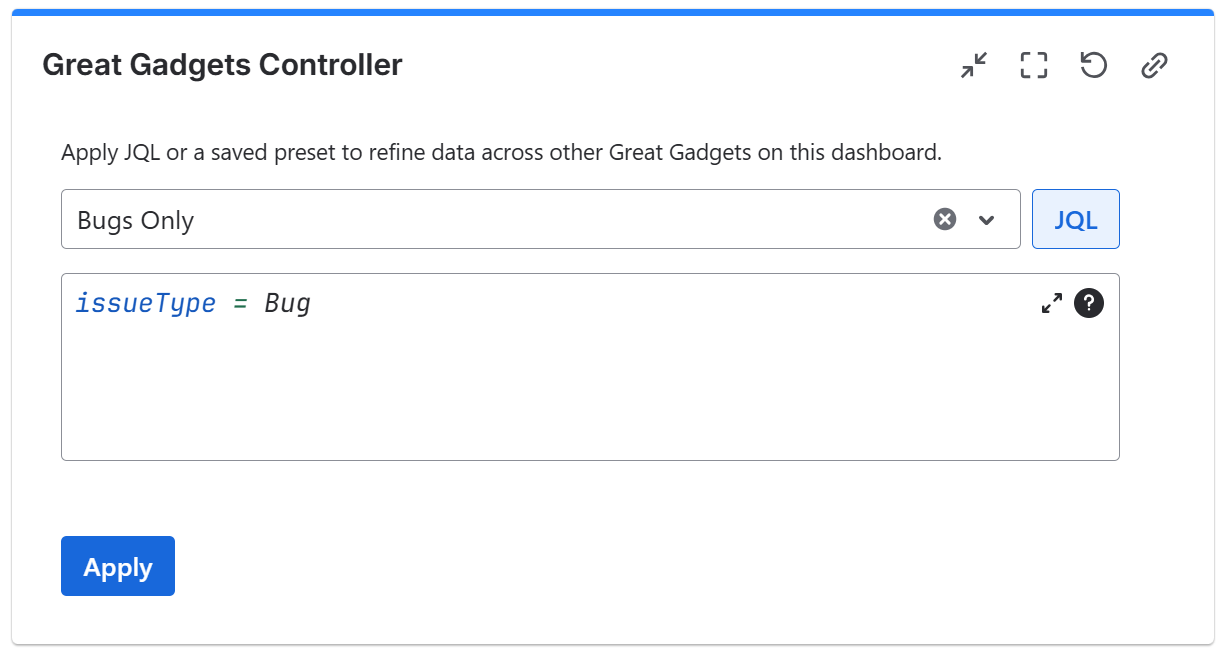
To apply the filtering, select one of the available presets from the dropdown (if available), or enter a custom JQL, then click Apply.
IMPORTANT
-
The extra filtering applied here affects only gadgets from the Great Gadgets app, not Jira's native gadgets or those from other apps.
-
The applied filter is temporary and will not be saved in the gadgets' configuration.
-
The presets dropdown is available only if at least one preset exists.
Creating and Managing Presets
In its configuration settings, the gadget allows dashboard editors to save JQL queries as presets, making filtering easier for dashboard viewers by eliminating the need to write JQL manually.
To create a preset:
-
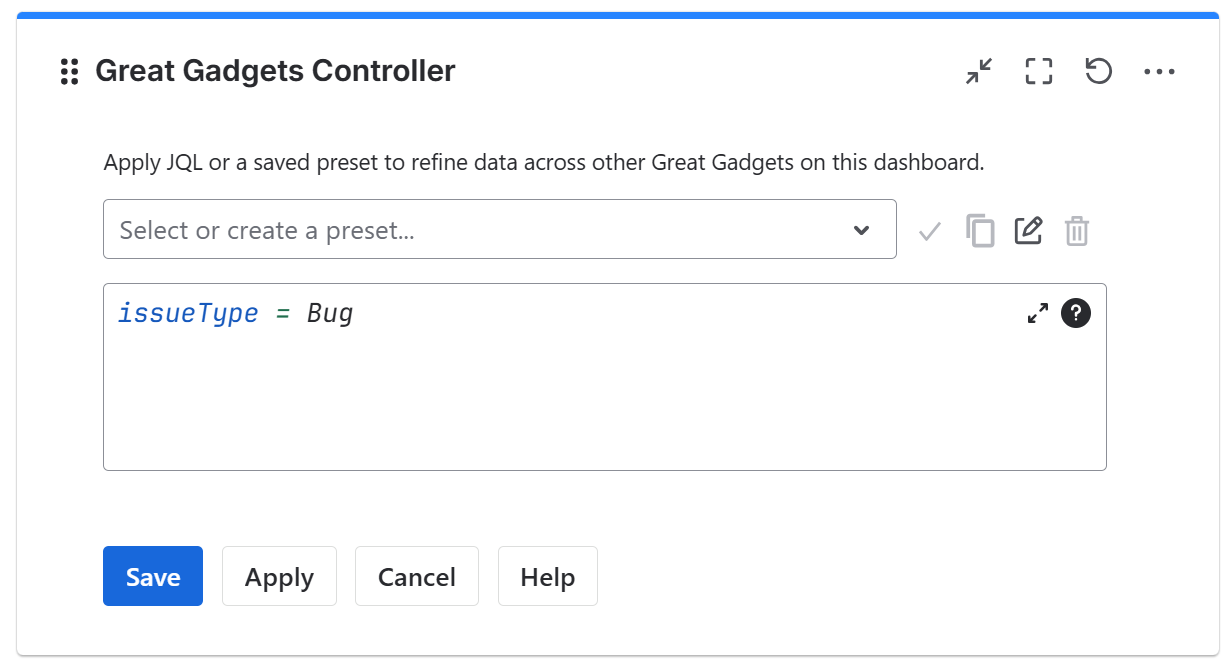
Go to the gadget configuration
-
Type the JQL query for the new present
-
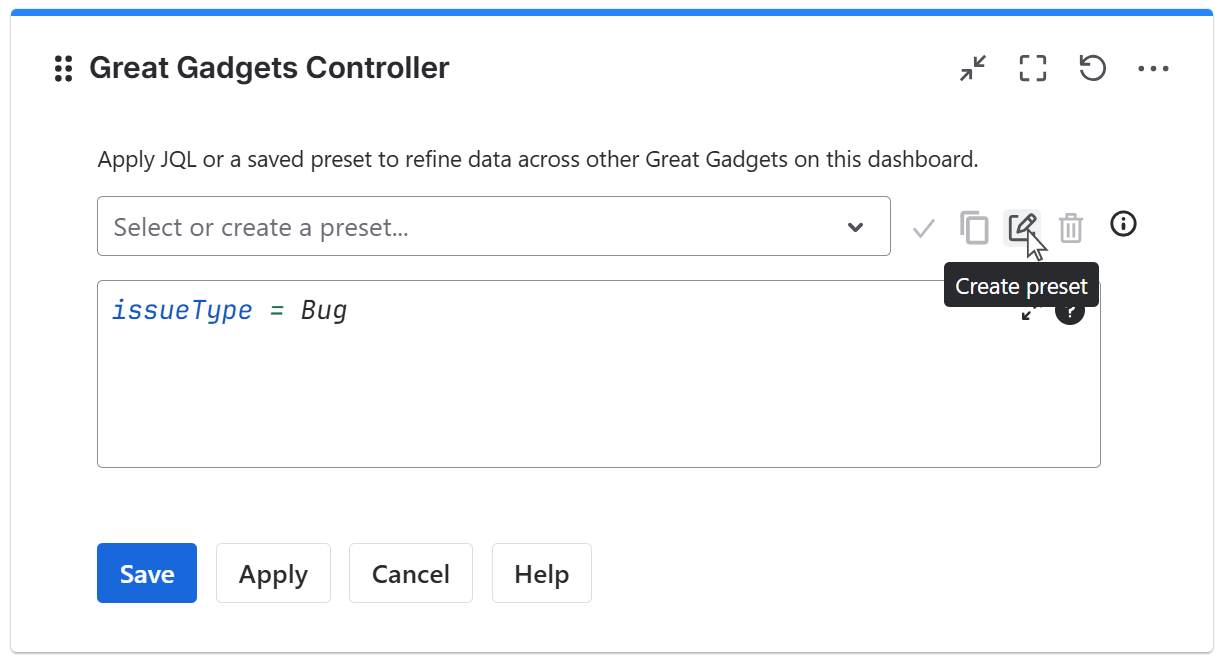
Click the Create preset icon
-
Enter a name for the new preset and click its Save icon
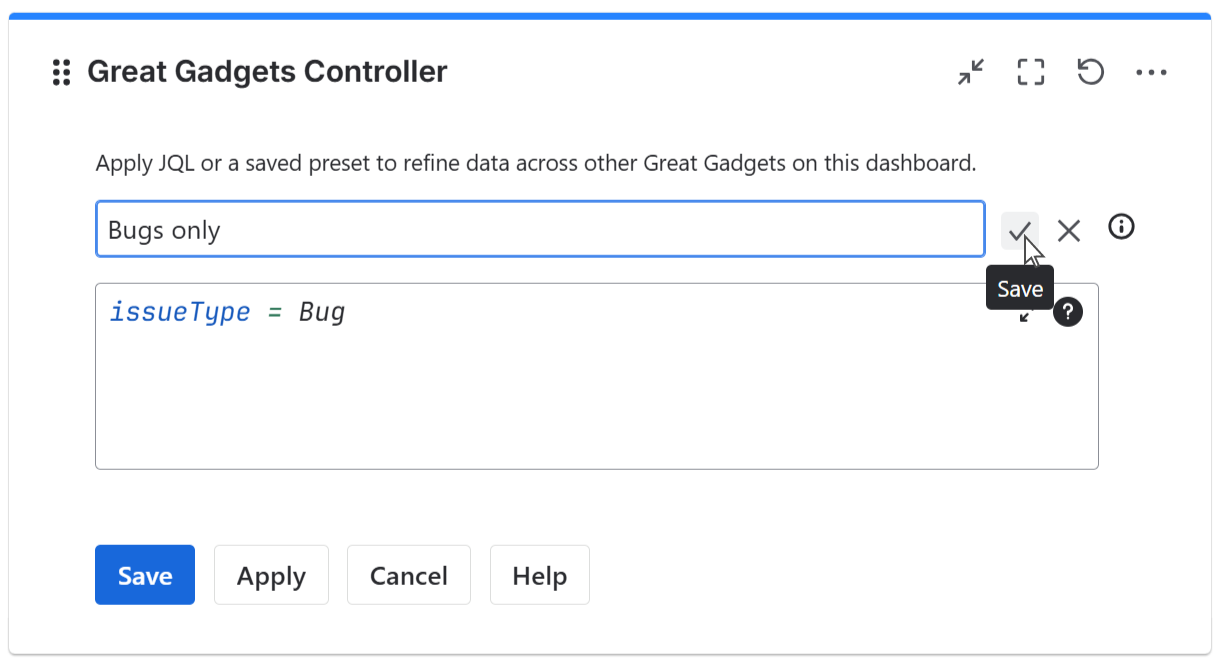
-
Click Save button
The created presets are available to all dashboard users, but they can only be edited in the gadget configuration.
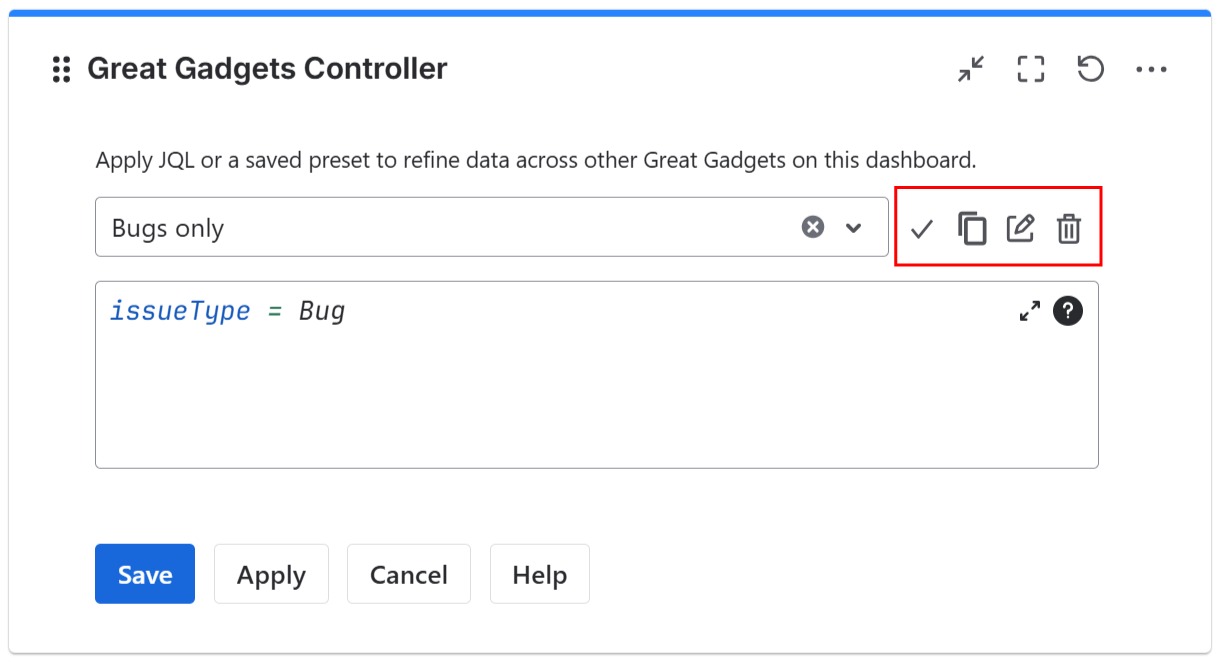
Presets can be modified, cloned, or deleted by selecting the preset and clicking the appropriate icon.
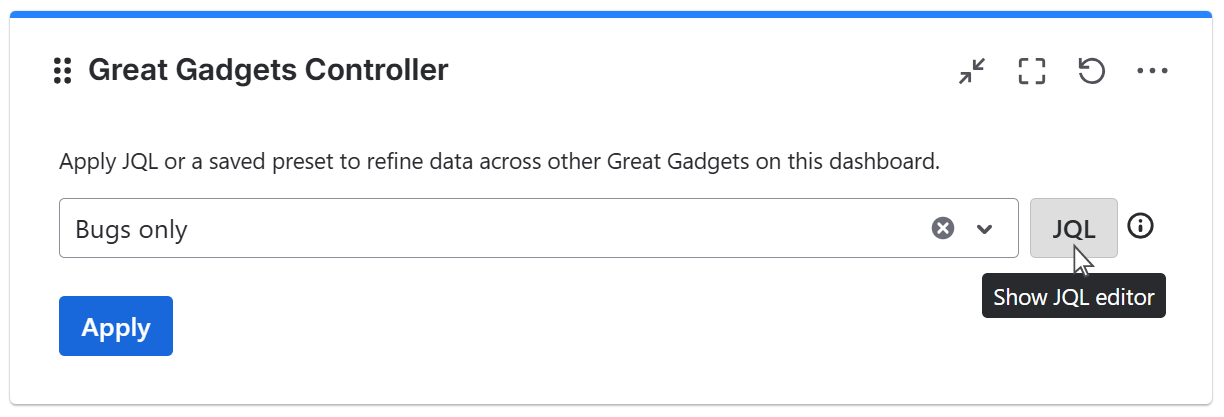
When a preset is available, the gadget displays a JQL button. Clicking this button reveals the JQL query behind the selected preset, allowing you to view or reuse it.
If no preset is configured, the gadget displays only the JQL editor field, where you can manually enter a query to define the filter.