
Overview
The Formula Widget helps you calculate and display key project metrics and important numbers at a glance.
It calculates and displays the result of a simple formula (like SUM, MAX or AVERAGE) on a numeric field of the work items from a specified shared query. The calculated formula result can be displayed as a number, in form of gauge chart or on a 5-star scale.
You can use this widget for calculating and displaying various metrics and project key numbers, such as total remaining work or the total work completed in a project.
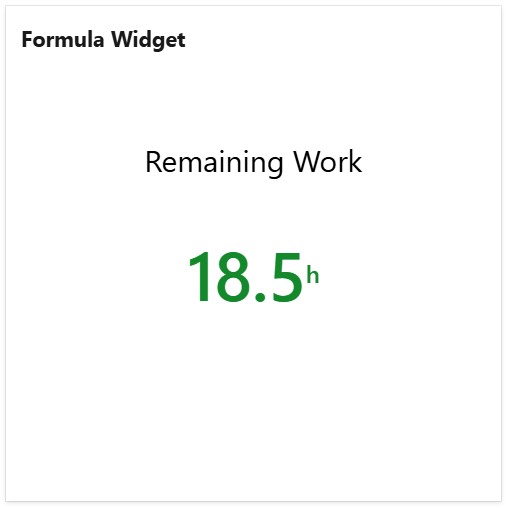
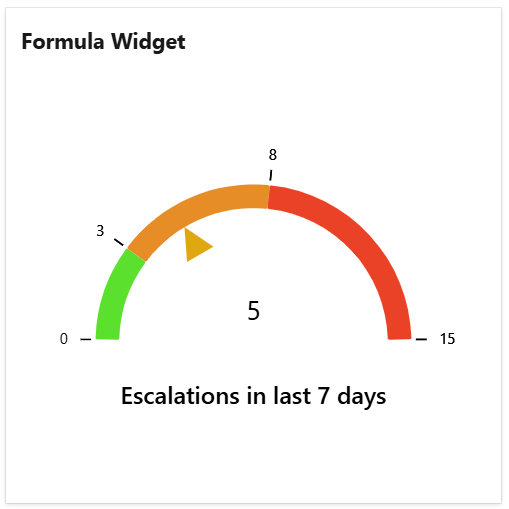
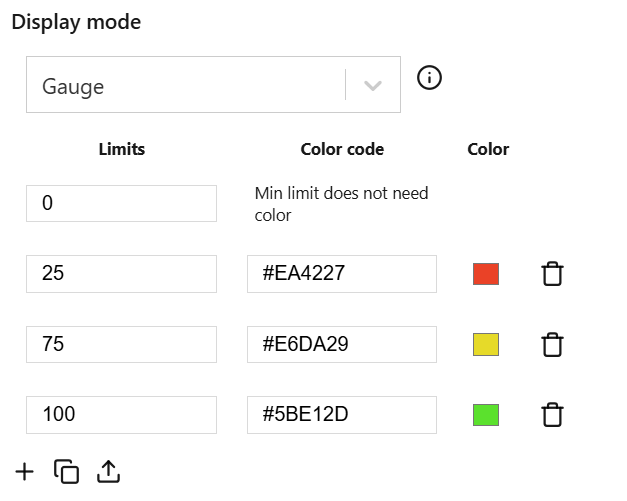
Or, visualize progress toward goals by configuring the widget as a gauge chart with custom limits and colors.
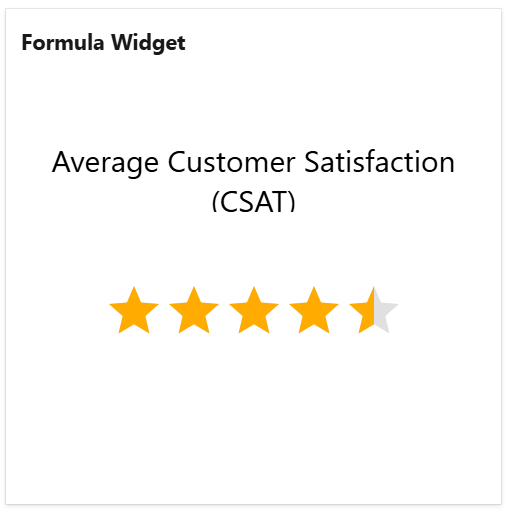
The widget can also be used for customer-focused metrics. If your customers provide feedback through a satisfaction survey after ticket closure, you can calculate and display the average Customer Satisfaction (CSAT) score for your support team based on the satisfaction field.
Configuration
The settings of this widget are divided in multiple tabs:
-
Data tab - contains the required settings of the widget, such as title or data source
-
More Settings tab - contains the optional settings
Data tab
On this tab you can configure the required settings of the widget.
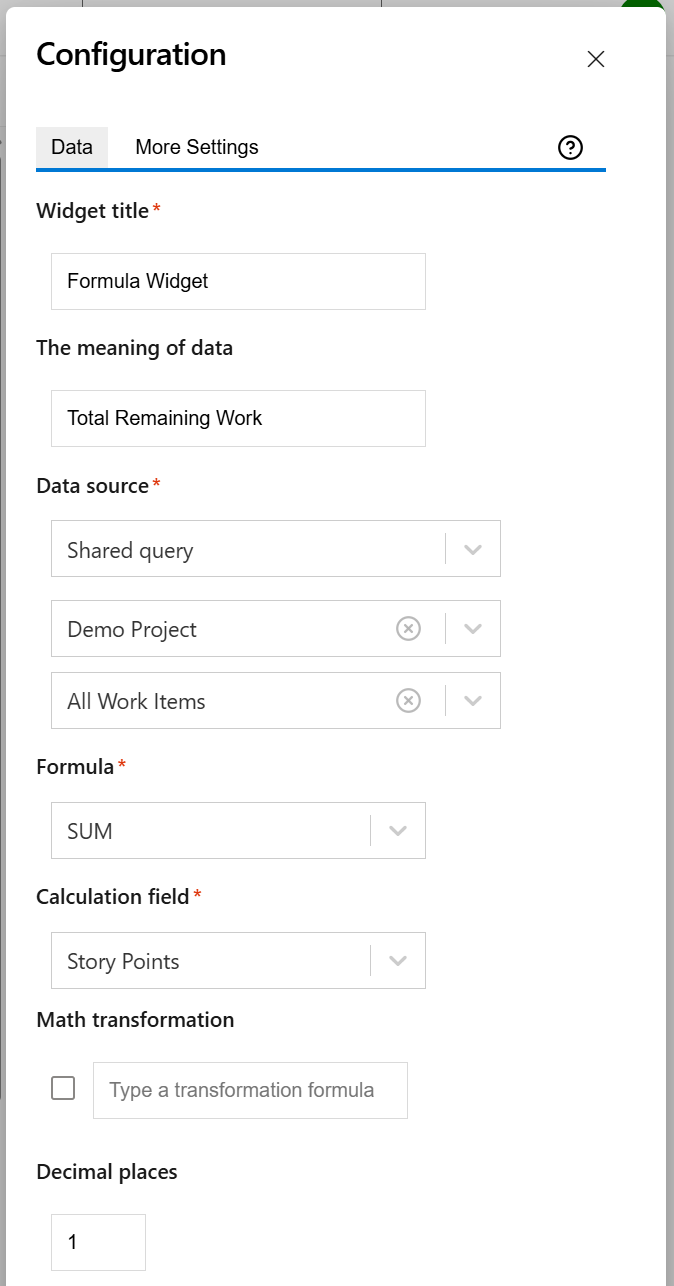
|
Setting |
Description |
|---|---|
|
Widget title |
Choose what to display in the title bar of the widget. |
|
The meaning of data |
Specify the text to be displayed under the calculated value representing the meaning of that value. |
|
Data source |
Select the type of Data Source used by the widget:
|
|
Formula |
Choose the basic formula (SUM, AVERAGE, MIN, MAX or COUNT) to be used in the calculation. |
|
Calculation field |
Select the field to be used for the calculation. You can choose from a list of the numeric fields available in your organizations. |
|
Math transformation |
Optionally, you can apply an extra math formula to the result of the basic formula. With this extra math formula, you can practically modify the final result with any operation or math function you want. The formula must contain For example, if the initial result represents a value in hours, you can transform it in days by adding math transformation |
|
Decimal places |
Choose the number of decimals to be used when displaying the final result. |
More Settings tab
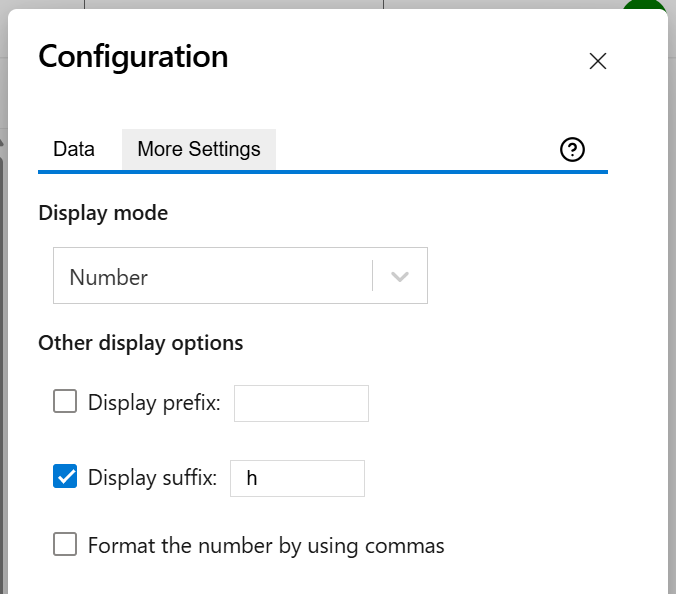
On this tab you can configure the optional settings of the widget.
|
Setting |
Description |
|---|---|
|
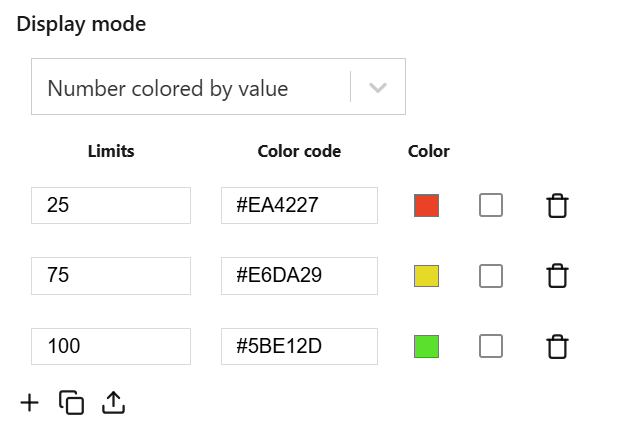
Display mode |
Choose how the result will be displayed:
|
|
Display prefix (unit of measure) |
Check this option if you want a text representing the unit of measure to be displayed before the calculated value. A prefix like '$' will be displayed in the form of |
|
Display suffix (unit of measure) |
Check this option if you want a text representing the unit of measure to be displayed after the calculated value. A suffix like 'h' will be displayed in the form of |
|
Format the number by using commas |
Check this option if you want the calculated value to be displayed with commas. For example, |
The widget displays 'NaN' (Not a Number) if the result of the formula cannot be calculated. This can happen in case of division by zero or when one of the variables cannot be calculated (for example, the AVERAGE or MAX for a query that returns no items).