
Overview
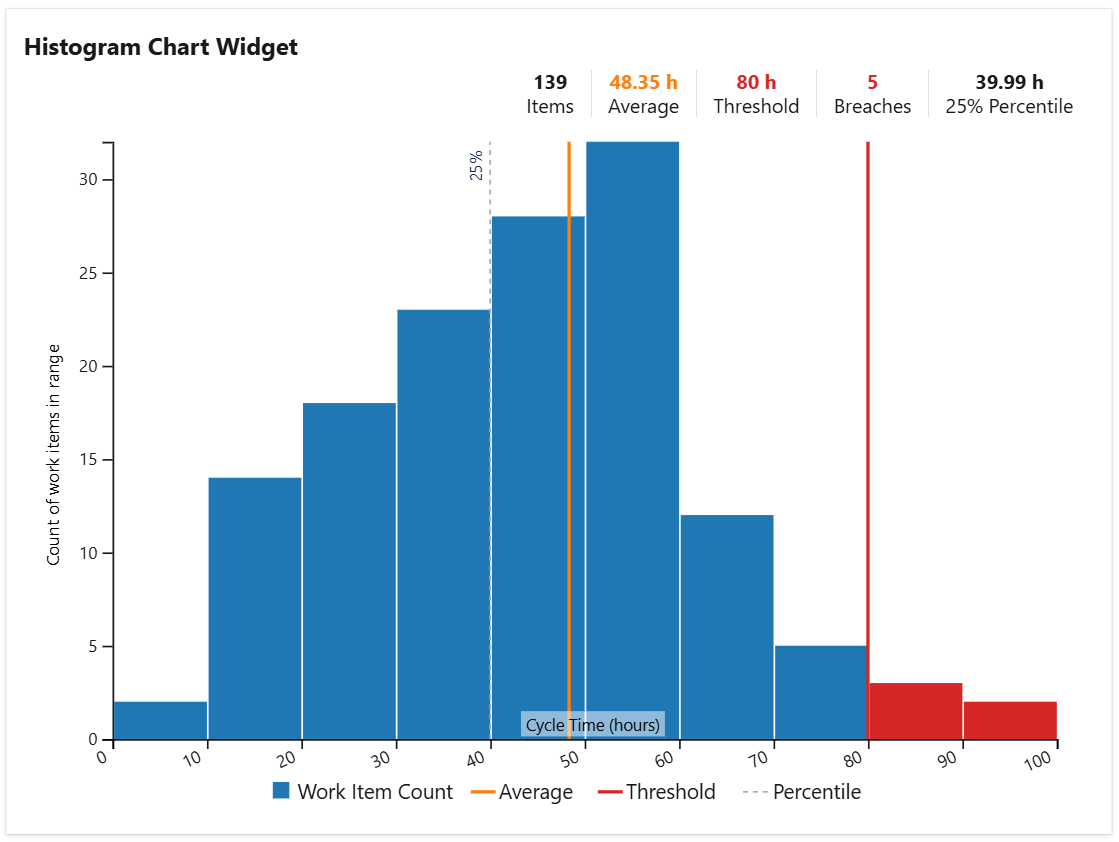
The Histogram Chart widget helps you visualize how your team delivers work, showing how many items were completed within the specified timeframe and how many were not, while also revealing patterns in cycle times.
Based on your configuration, the widget calculates key Kanban metrics—such as Cycle Time, Lead Time, or the time between two workflow states—for work items returned by a specified shared query and time interval. It then displays the distribution of these values as a histogram.
Optionally, the chart can display an average cycle time line and a custom threshold to quickly highlight items with unusually long cycle times.
Completed items are grouped into “bins” that represent ranges of cycle durations, showing how many items fall into each range and providing a clear view of your team’s performance distribution.
How does it work?
The widget identifies those items from the specified query that completed a cycle in the specified time interval, determines the cycle(s) duration and then groups them into "bins", indicating how many values fall into ranges.
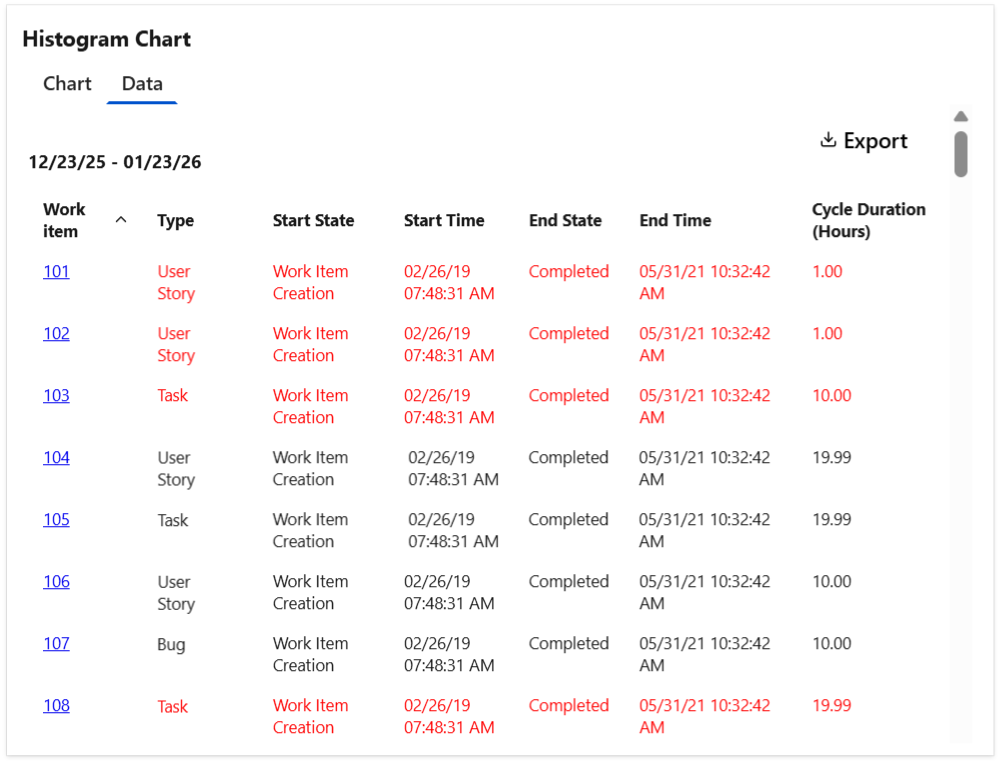
Optionally, the widget can display a Data tab with detailed information for each work item shown in each interval, including the cycle time details and the average calculation. The table can be easily exported as a CSV file.
Tips & Tricks
Tips & Tricks
To calculate "Cycle Time", set the following:
-
Cycle starts = When the item entered a state that has category "In Progress"
-
Cycle ends = When the item entered a state that has category "Completed"
To calculate "Lead Time", set the following:
-
Cycle starts = When the item was created or when the item entered a state that has category "Proposed"
-
Cycle ends = When the item entered a state that has category "Completed"
Configuration
The settings of this widget are divided in multiple tabs:
-
Data tab - contains the required settings of the widget, such as title or data source
-
More Settings tab - contains the optional settings
-
Colors tab - lets you customize the color of the lines displayed in the chart
Data tab
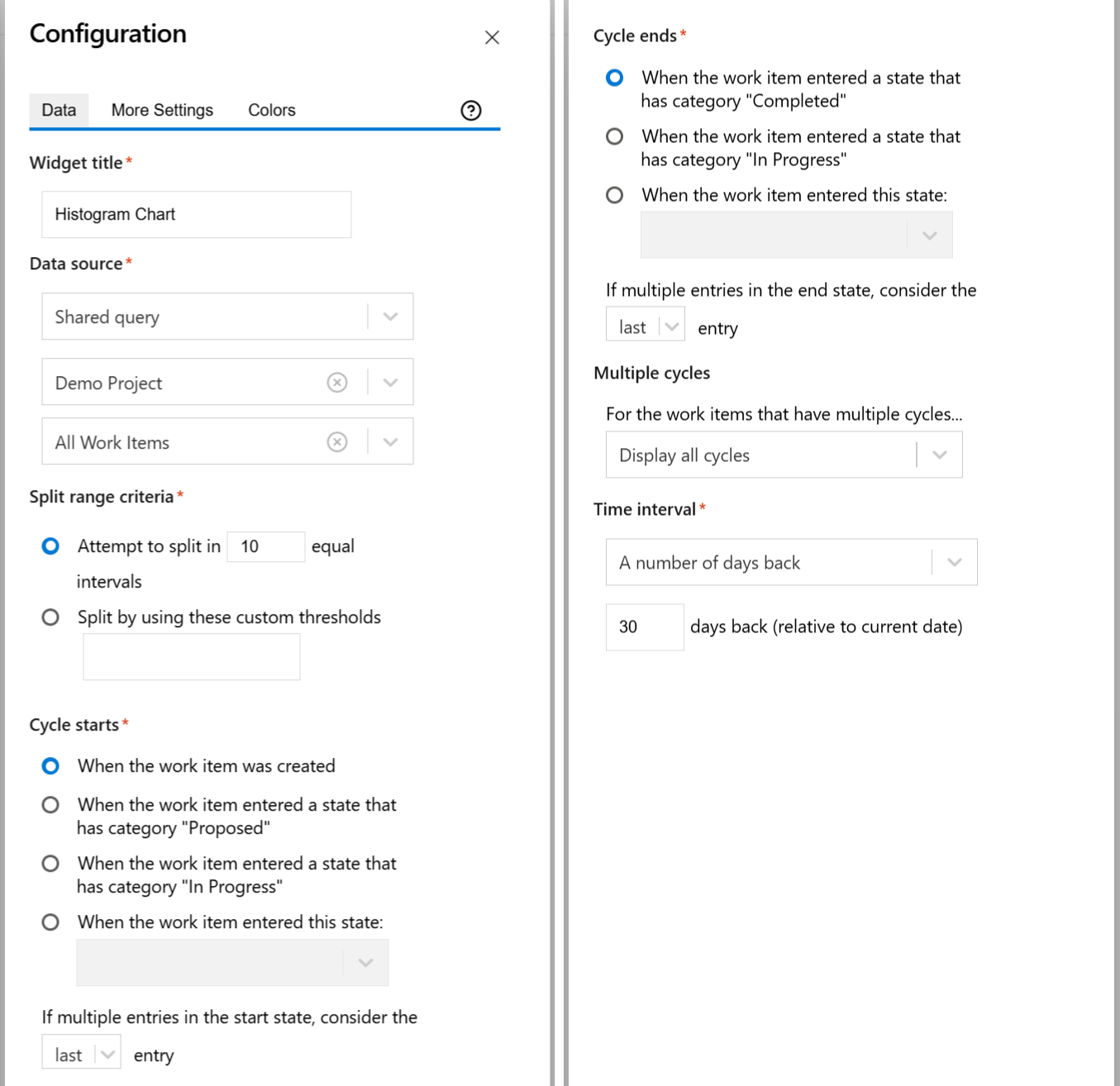
On this tab you can configure the required settings of the widget.
|
Setting |
Description |
|---|---|
|
Widget title |
Choose what to display in the title bar of the widget. |
|
Data source |
Select the type of Data Source used by the widget:
|
|
Split range criteria |
Choose how to define the segmented columns (bins). If you choose Attempt to split in ? equal intervals, the widget will try to divide the range in equal intervals, although it is not always possible to split in the number of intervals that you specified. So the number that you enter is actually a "desired" number. If you choose Split by using these custom thresholds, the range will be divided according to the entered thresholds. In this case, you must manually introduce the thresholds separated by a comma (for example: 100, 200, 300, 400, 500). |
|
Cycle starts |
Indicates what to consider as the start event of a cycle. You can choose between:
Example

If you set If multiple entries in the start state, consider the first entry, the cycle will start when the item was transitioned in the "In Progress" state for the first time. 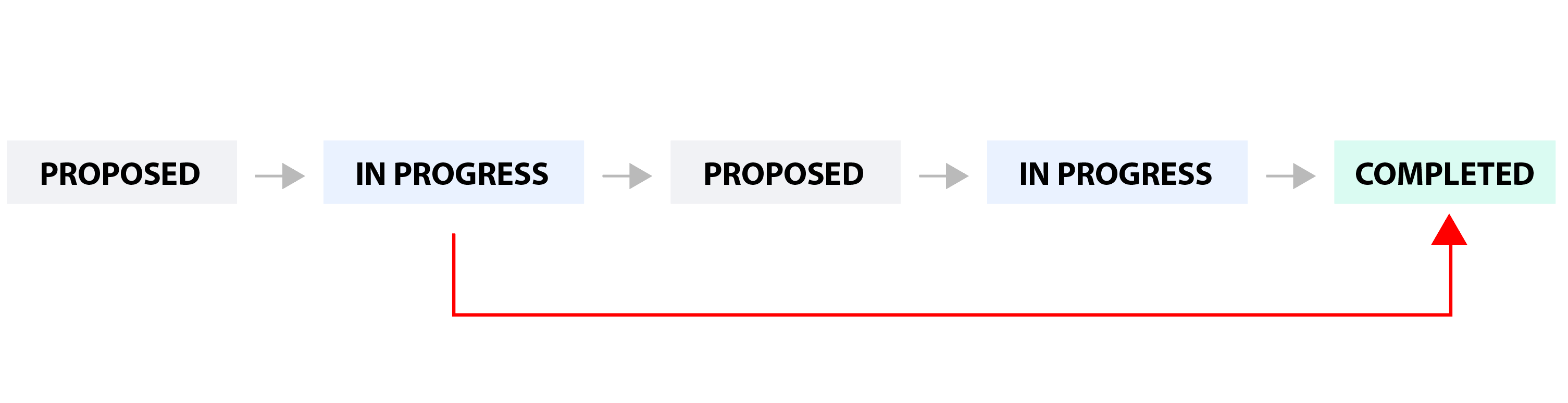
If you set If multiple entries in the start state, consider the last entry, the cycle will start when the item was transitioned in the "In Progress" state for the last time. 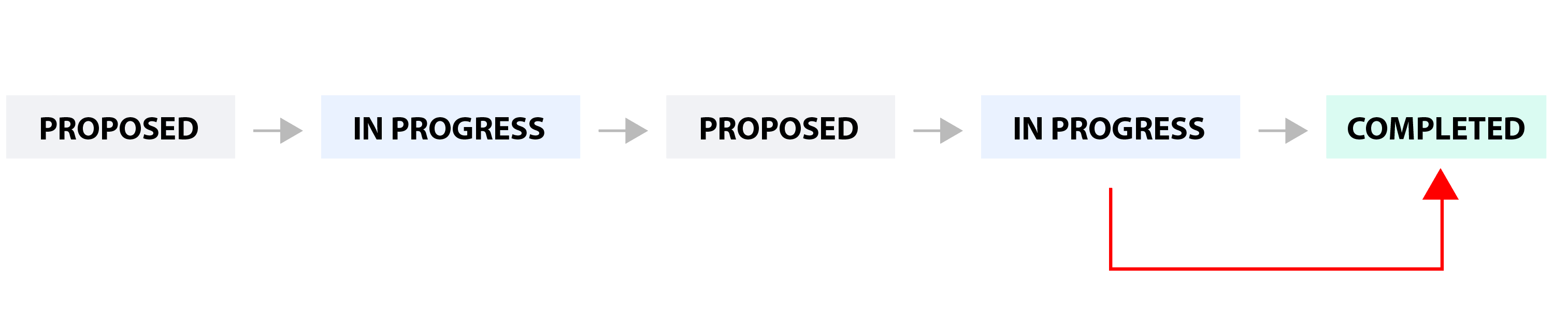
|
|
Cycle ends |
Indicates what to consider as the end event of a cycle. You can choose between:
You can also choose how to handle the case when there are multiple transitions to the end state by setting If multiple entries in the end state, consider the ? entry to first or last. See the example below. Example

If you set If multiple entries in the end state, consider the first entry, the cycle will end when the work item was transitioned in the "Completed" state for the first time. 
If you set If multiple entries in the end state, consider the last entry, the cycle will end when the work item was transitioned in the "Completed" state for the last time. 
|
|
Multiple cycles |
Decide how the widget should handle those work items that have multiple cycles. This situation occurs if the work item was transitioned multiple times through the start and finish states of the cycle. Example
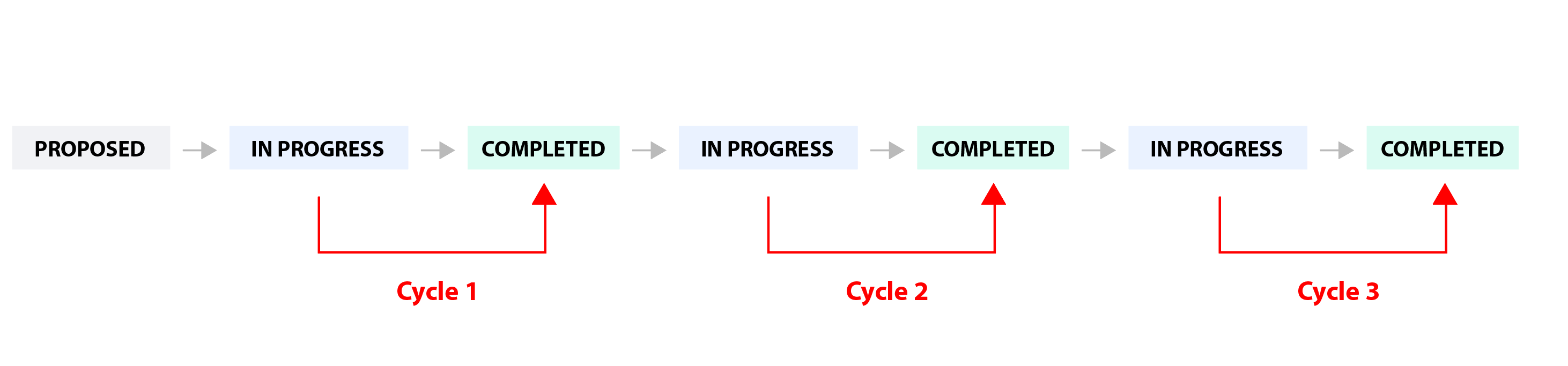
You can choose between:

|
|
Time interval |
Represents the time interval displayed by the widget. You can choose from multiple options: Custom dates - choose this option if you want to manually enter a Start date and an End date. A number of days back - By choosing this option, the widget will use a rolling time interval with a number of days back to the current day. Dates of a sprint - Choose this option if you want the widget to use the start and end dates of an existing sprint. Only the dates are considered (not also the hours). The start of the interval will be the start date of the sprint with time at the start of day, while the end of the interval will be the end date of the sprint with the time at the end of day. When enabled, you’ll need to select the project and team the sprint belongs to. If you choose the Latest sprint (auto), the date range will automatically match the most recent sprint. If you manually select a specific sprint, any changes made to its dates on the board will be automatically reflected in the widget, without the need to reconfigure it. |
More Settings tab
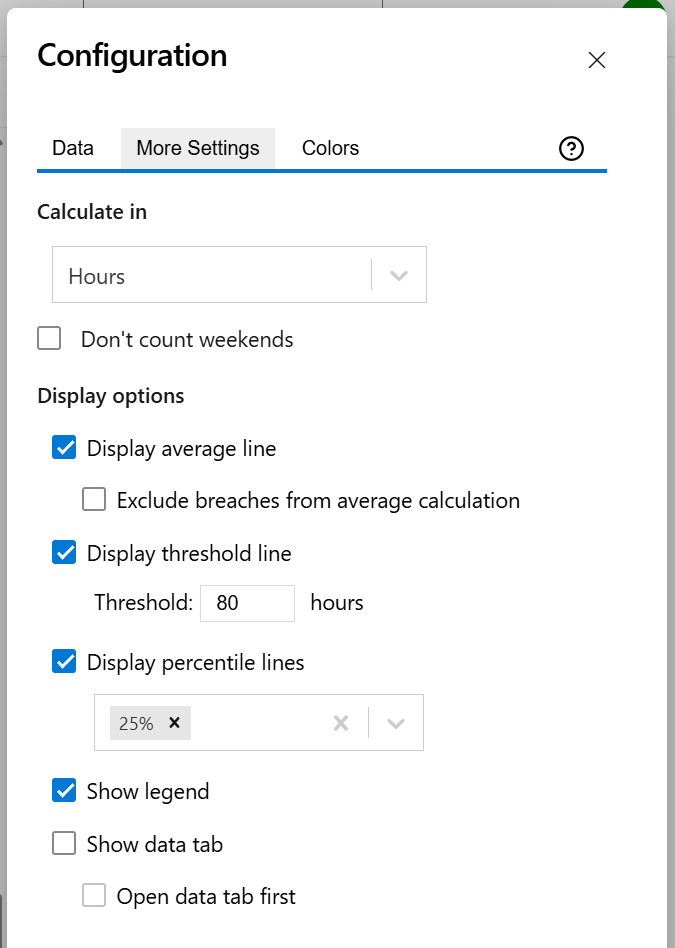
On this tab you can configure the optional settings of the widget.
|
Setting |
Description |
|---|---|
|
Calculate in |
Specify in what time unit measure the cycle time will be calculated and displayed. |
|
Don't count weekends |
Check this option if you want to exclude the weekends (Saturdays and Sundays) from the cycle time calculation. |
|
Display average line |
Check this option if you want the chart to display a vertical line with the average cycle time for the specified time interval. |
|
Exclude breaches from average calculation |
Check this option if you want the average calculation to exclude items that exceeded the set threshold (breaches). This option has no effect if no threshold is set. |
|
Display threshold line |
Check this option if you want the chart to display a vertical line representing a threshold. The items that have a cycle time higher than the specified Threshold value will be colored in red. |
|
Display percentile lines |
Check this option and enter the values (percents) corresponding to the percentiles to be displayed as vertical lines. A percentile is a value from the data set that splits the data into two pieces: the lower piece contains the percent of the data, and the upper piece contains the rest of the data. For example, the 75% percentile will be displayed as a horizontal line with 75% of the items under it and the rest of the items (25%) over it. |
|
Show legend |
Check this option if you want the chart legend to be displayed. |
|
Show data table |
Check this option if you want a data table to be displayed along with the chart. The Data tab displays the items along with their cycle time details and the average calculation. |
|
Open data tab first |
Check this option if you want the widget to open on the Data tab first (instead of Chart tab as default). Note that the tab order will remain unchanged (Chart, then Data); only the initial view will switch to the Data tab. |
Colors tab
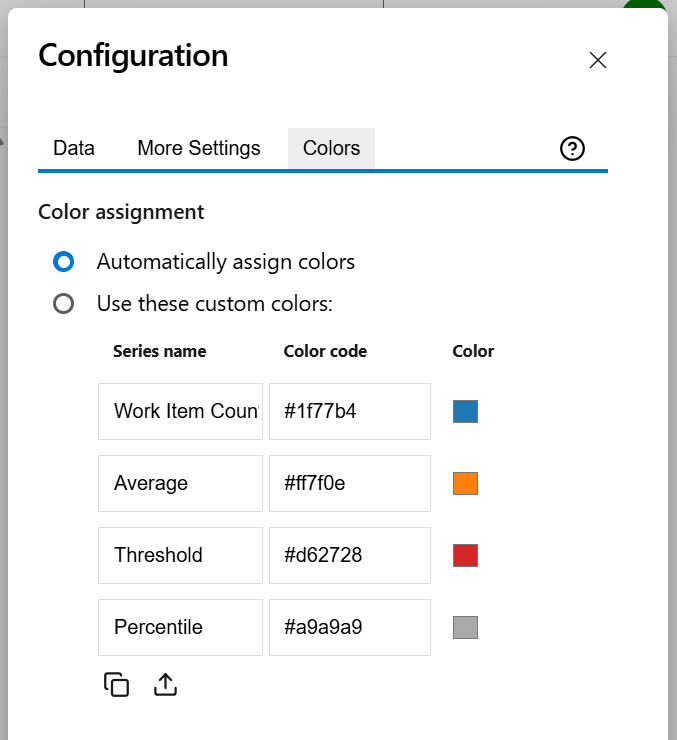
On this tab you can customize the color of the lines displayed in the chart.
|
Setting |
Description |
|---|---|
|
Automatically assign colors |
Check this if you want the chart to automatically assign colors for the series. |
|
Custom colors |
Select any custom color you want the series to be displayed on by either entering the color's hexadecimal code or picking a color. You can also use the Copy and Import buttons to copy and import the color configuration to widgets of the same type. |